Configure an Item Attribute Flat Charge as a Service Charge
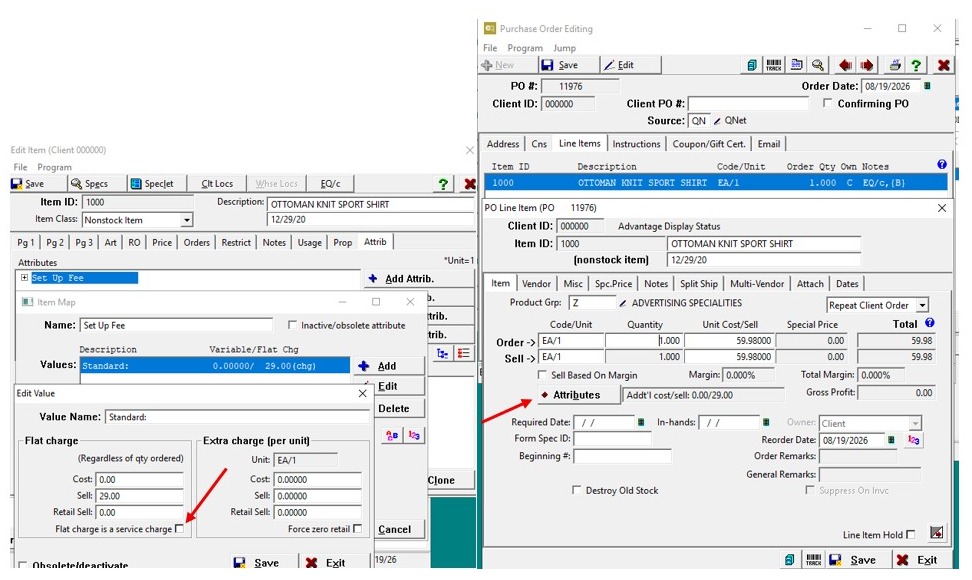
The Flat Charge Is a Service Charge checkbox determines how a flat-fee attribute is brought into Quantum when an eCommerce order is imported. •When the checkbox is selected, the flat fee is imported to the Purchase Order as a Special Pricing service charge. •When the checkbox is not selected, the flat fee remains associated with the item and appears under the item's Attributes section on the Purchase Order.
Alert: Note: This process was created in a test environment. The information selected is for training purposes only and will not match the data you will use in your company's system.
Tip: Purpose
Use this process when a flat-fee item attribute should be treated as a separate service charge on the Purchase Order.
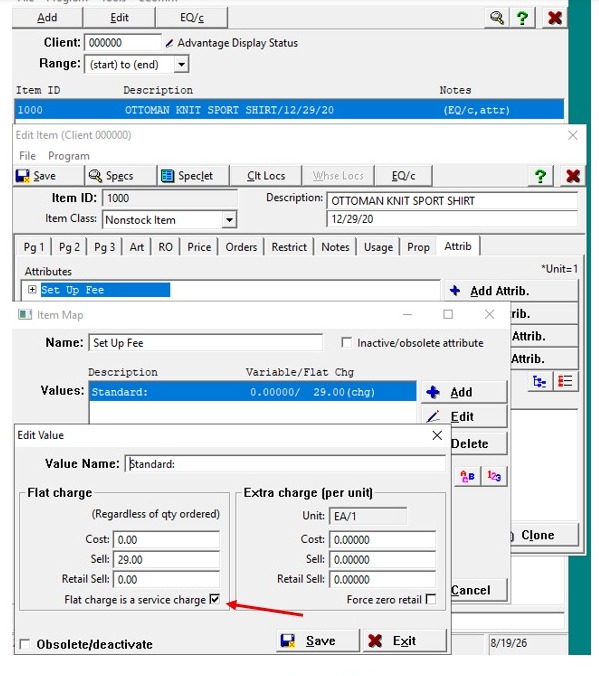
1. Configure the Item Attribute
- Open Item Maintenance.
- Open the applicable item.
- Go to the Attributes tab.
- Select Add.
- Enter the attribute name. For this example, I used Setup Fee.
- Enter the attribute value. For this example, I used Standard.
- Enter the applicable amount in the Flat Charge field. For this example, I used $29.00.
- Check Flat Charge Is a Service Charge.
- Save the attribute.
2. Export the Updated Data to EQC
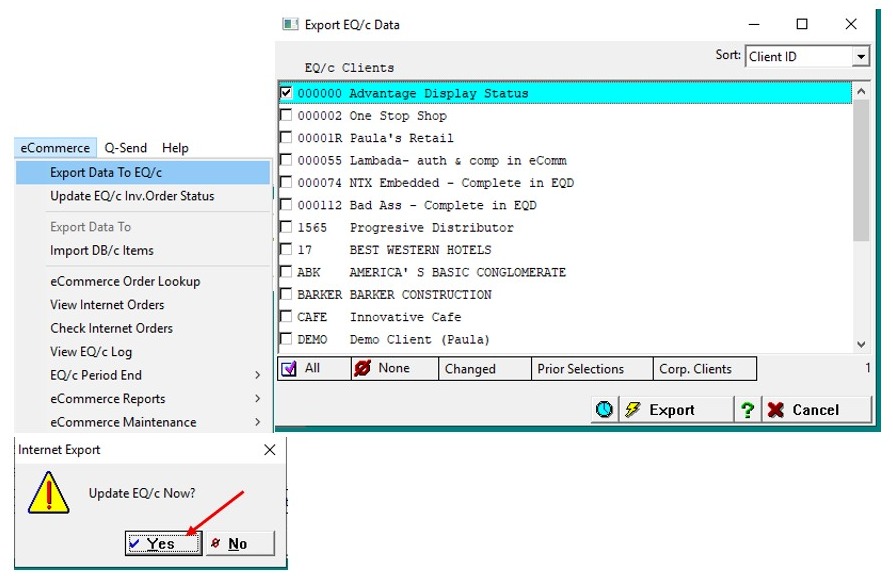
- Export the updated EQC data.
- When prompted to update EQC, select Yes.
3. Place an eCommerce Order
- Go to the applicable client and select the appropriate user.
- Add the configured item to the order.
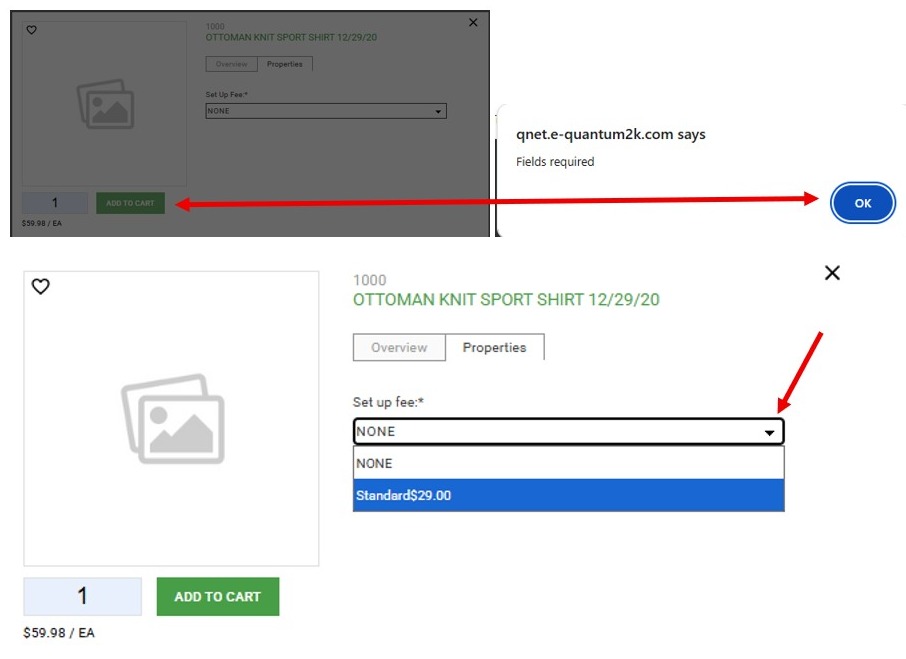
- If a Field Required message appears, go to Properties.
- Select the applicable attribute value. For this example, I selected Standard – $29.00 Fee.
- Continue through Shipping and Checkout.
4. Order Confirmation Displays the Standard Extra Flat Fee
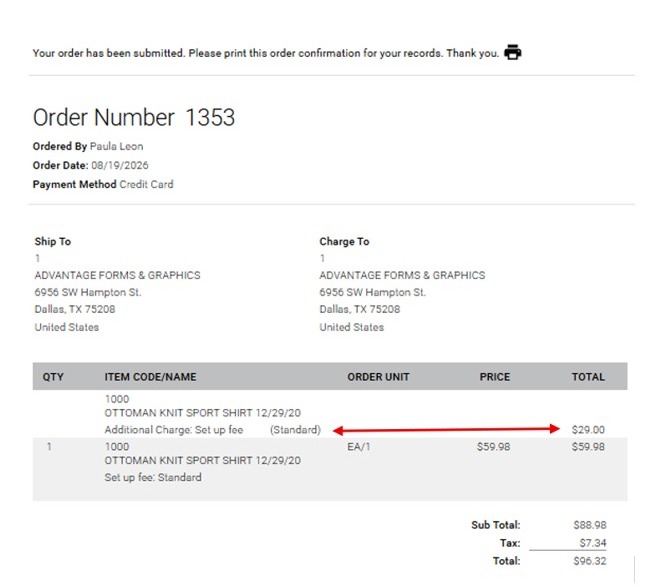
5. Import and Review the Order
- Go to eCommerce > View Internet Orders.
- Process the imported order.
- If prompted to copy information from a previous Purchase Order, clear any information you do not want copied and select OK.
- Create the Purchase Order and view.
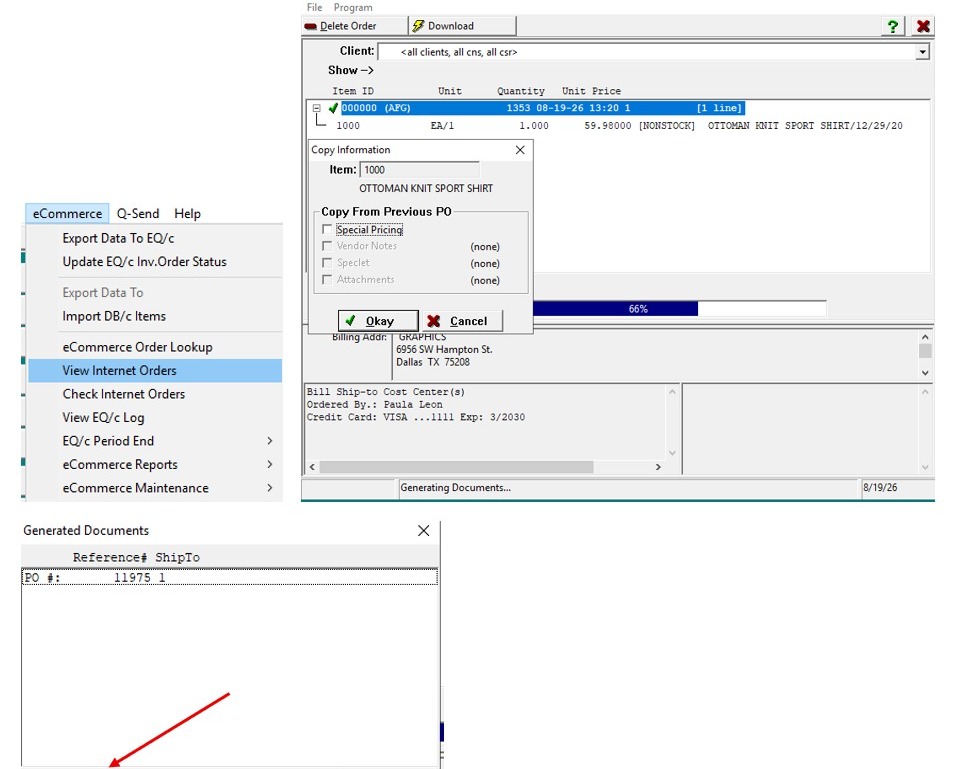
6. Open the Purchase Order and go to the Item tab.
- Verify that the flat-fee attribute does not appear under the item's attributes.
- Go to the Special Pricing tab.
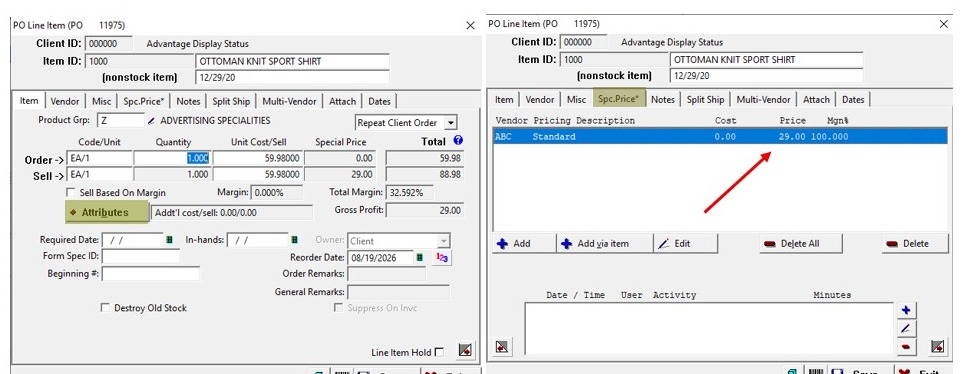
Tip: Expected Result
When Flat Charge Is a Service Charge is checked, the configured flat fee is imported to the Purchase Order as a Special Pricing service charge rather than as an item attribute.
For Reference
7. Note: If Flat Charge Is a Service Charge is unchecked, the $29.00 fee appears under the item's Attributes section on the Purchase Order instead of under Special Pricing.