
DBD: Order Processing Return Order Credit Customer
DBD: Order Processing - Return Order (Credit Customer And Return Stock To Inventory)
🔵 Overview This situation occurs when inventory needs to be returned to the warehouse and a credit issued to the client.
Step 1: Start the Order
This begins in order entry, set the desired order type, and proceed.
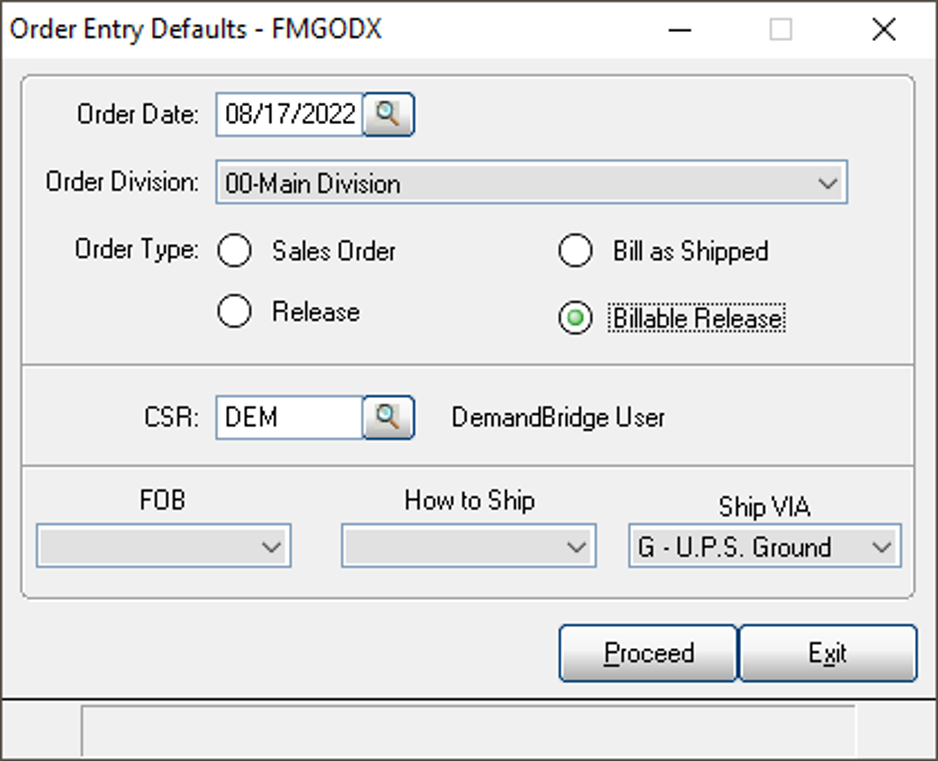
Order Entry Defaults - FMGODX
Add a new order, enter Customer's code, add Customer P/O number, and click Finish to proceed to the Order Line Entry.
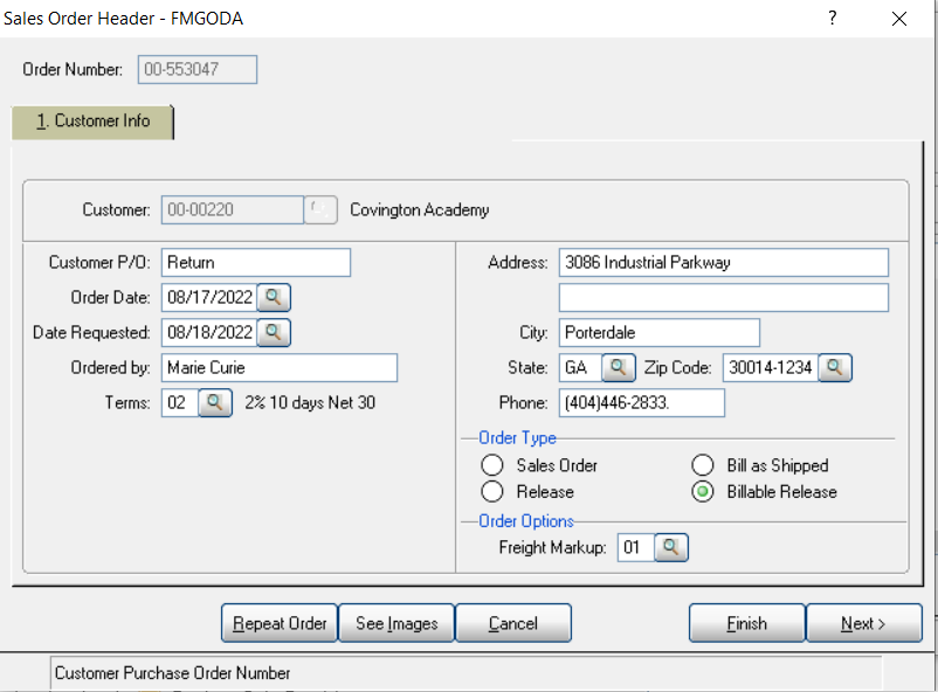
Sales Order Header - FMGODA
Step 2: Add the Return Line
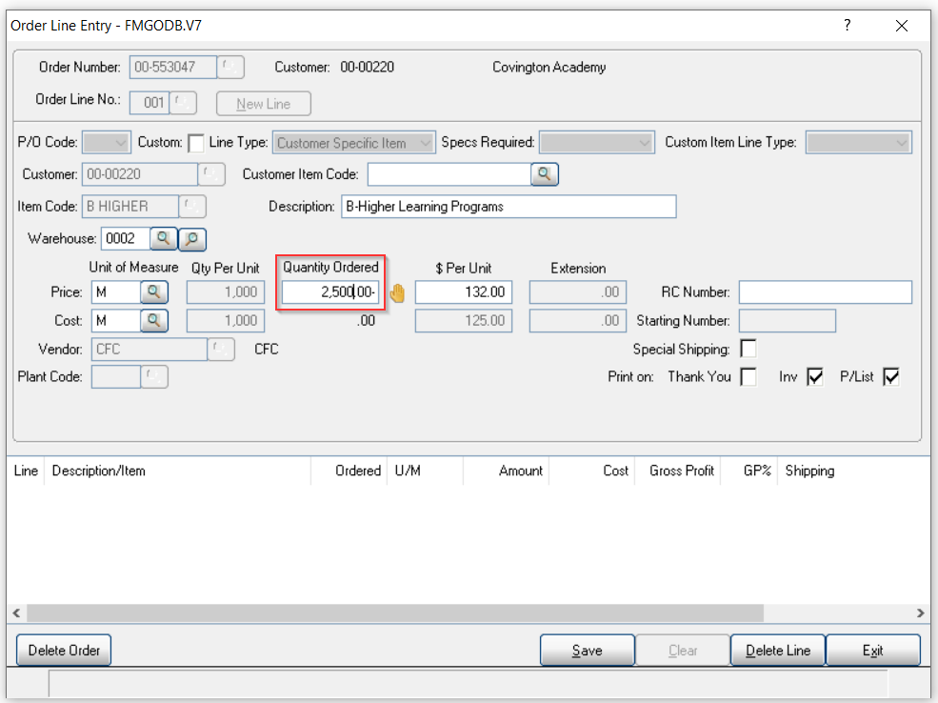
Order Line Entry - FMGODB.V7
Add your line, the line type will be either Customer Specific Item or Stock Item.
- Enter the Item Code
- Enter the Warehouse Code Inventory will be returned to.
- Enter a Negative number in the Quantity Ordered field (for this example -2500) and enter.
- The negative quantity will open the Inventory Lot Receiving panel
Step 3: Set Up the Inventory Lot Record
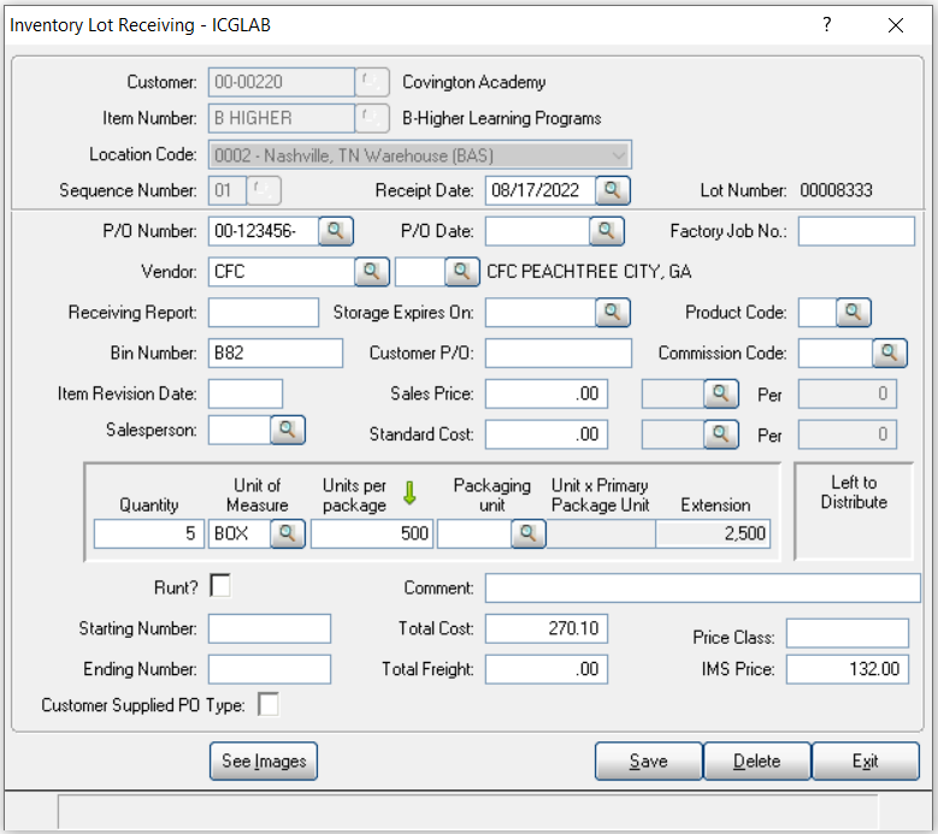
Inventory Lot Receiving - ICGLAB
- Enter the Sequence and Receipt Date, then add entry when prompted
- Enter the data required to setup a new Inventory Lot record
- Quantity
- Unit of Measure
- Units per package
- Total Cost
- Other fields as appropriate such as Bin Number, Original P/O Number, and Sell pricing if needed.
- Save and exit to return to order entry lines
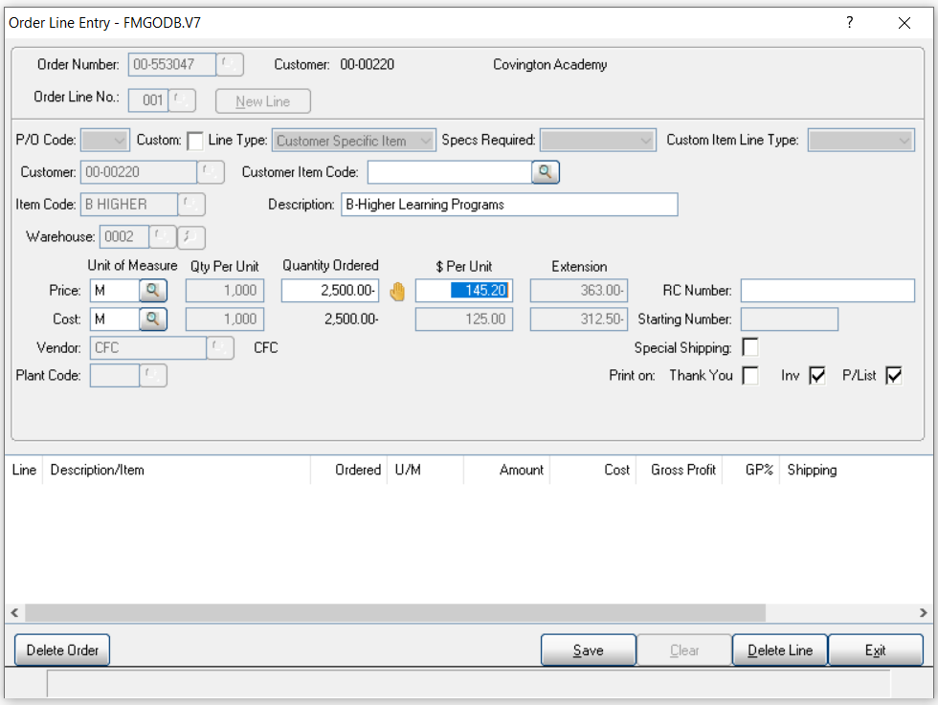
Order Line Entry - FMGODB.V7 — line after lot setup
The line will display the quantity being returned and the cost entered in the lot setup. Can change the sell price if needed at this time.
This order is now ready to pull through the Accounts Receivable Invoicing process. When the Sales Journal is updated, credit will be issued to the client and the stock returned to Inventory and available for sale.
Option: Initiating the Return From Accounts Receivable
This process can also be initiated through Accounts Receivable, Invoice Entry. Add an invoice number, at the order number, click on the +Req. Entry field immediately below the Order Number. This will suspend Invoice entry to allow the Requisition entry option to enter the return.
Enter return information, when order entry is complete, exit and return to the Accounts Receivable Invoice Entry to complete the invoice.
Frequently Asked Questions
Q: What situation does this procedure address?
A: When inventory needs to be returned to the warehouse and a credit issued to the client.
Q: How do I flag a line as a return rather than a normal sale?
A: Enter a negative number in the Quantity Ordered field (for example, -2500) — this automatically opens the Inventory Lot Receiving panel.
Q: What do I need to enter when setting up the returned inventory's lot record?
A: Quantity, Unit of Measure, Units per package, and Total Cost are required; Bin Number, Original P/O Number, and Sell pricing can also be entered as appropriate.
Q: Can I change the sell price after the lot is set up?
A: Yes — after returning to the order line, you can change the sell price if needed.
Q: What happens when the Sales Journal is updated for this order?
A: A credit is issued to the client and the stock is returned to inventory, becoming available for sale again.
Q: Can I start this process from Accounts Receivable instead of Order Entry?
A: Yes — in A/R Invoice Entry, add an invoice number, then click the +Req. Entry field below the Order Number. This suspends invoice entry and lets you enter the return through Requisition entry, then return to Invoice Entry to finish the invoice.
Tags: order-processing, return-order, credit-customer, returns-to-inventory, DB-distributor