EQD: Remote Desktop Connection Mac Setup (MacOS 12 and higher)
Alert: Note: You will need your username and password to access the remote desktop.
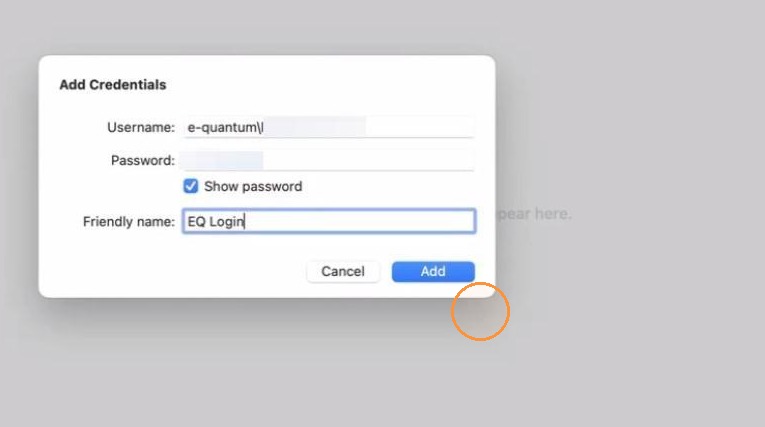
- This is not the same as your username and password to access the EQD software. This login info is created by DemandBridge. The user name is formatted like: e-quantum\john.smith the password will be a random series of 8 letters numbers and characters.
- If you do not have this login info the only option is to reset the password since we do not keep a record of user passwords. Contact DB support to request a password reset.

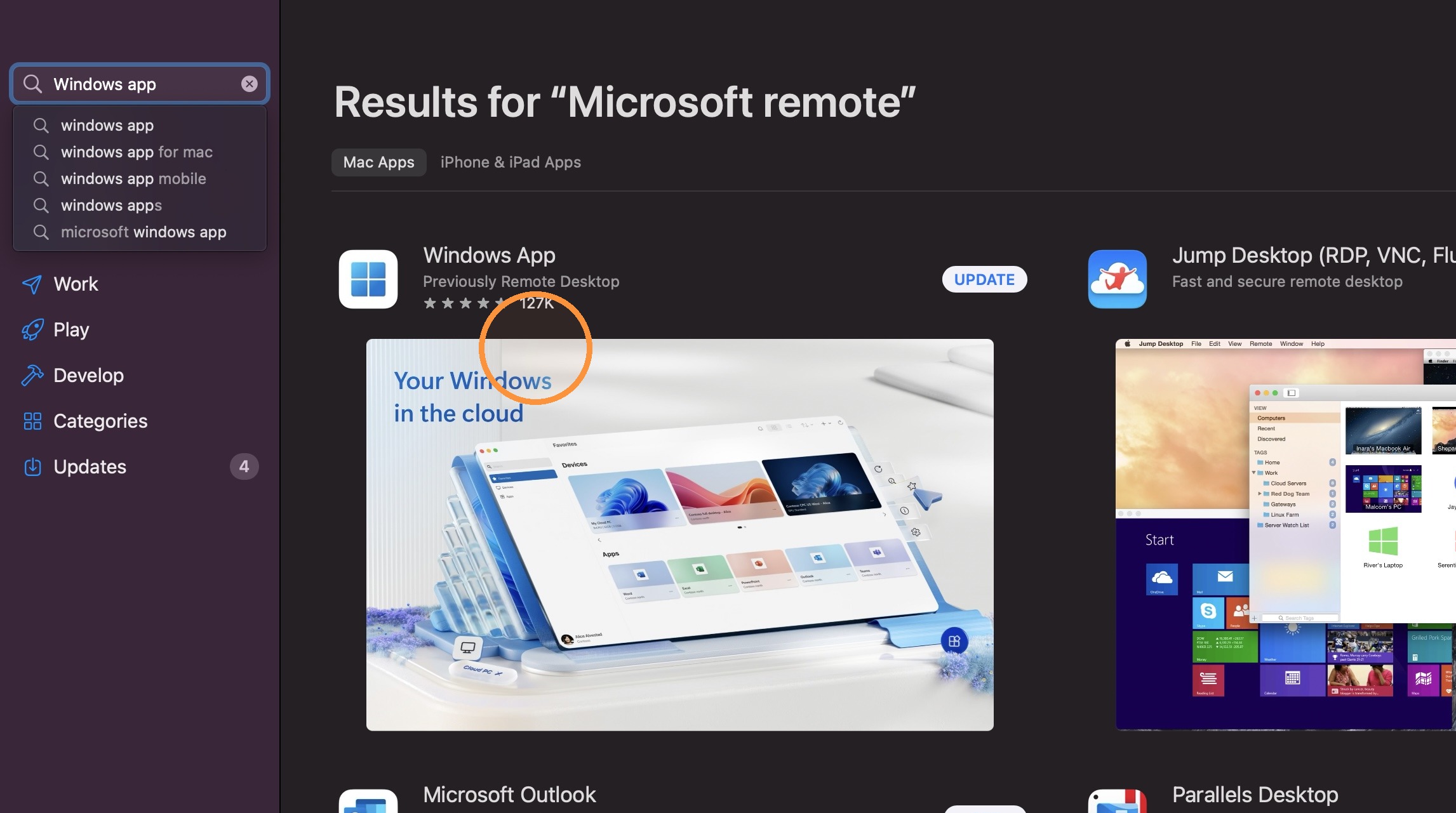
1. Go to the App store and search "Microsoft Remote" or "Windows App". Install that app on your Mac.
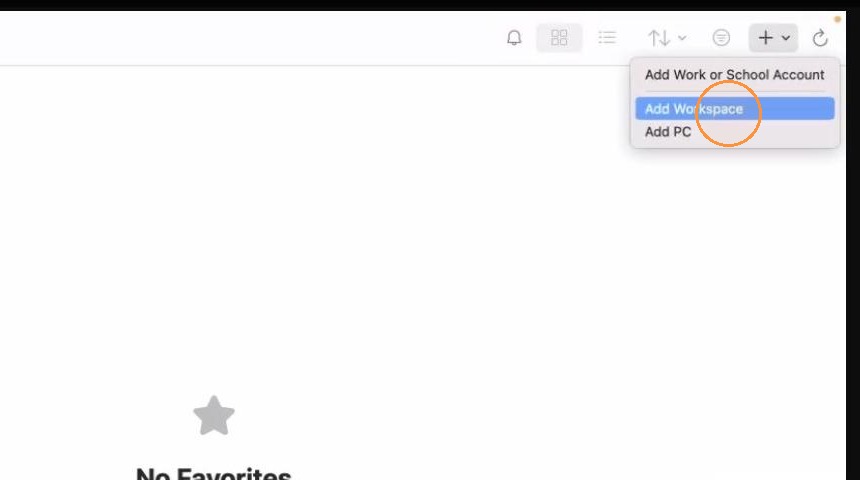
2. Click the "+" in the top right corner then select "Add Workspace".
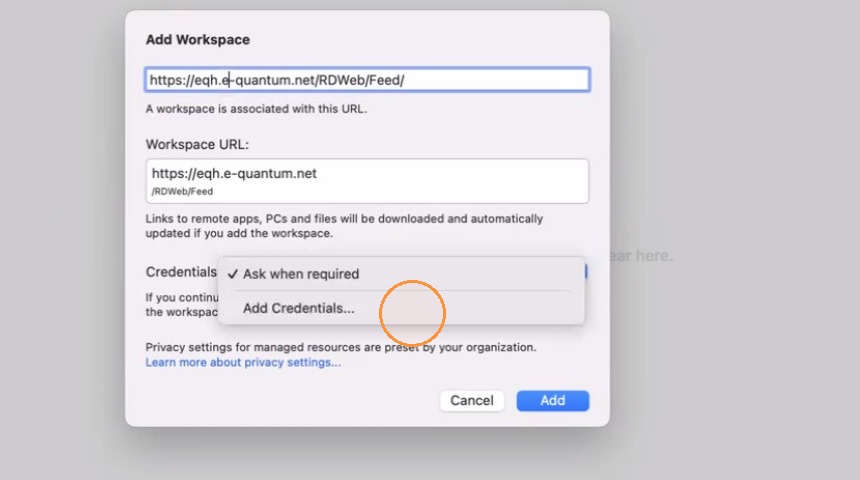
3. Input this URL https://eqh.e-quantum.net/RDWeb/Feed/
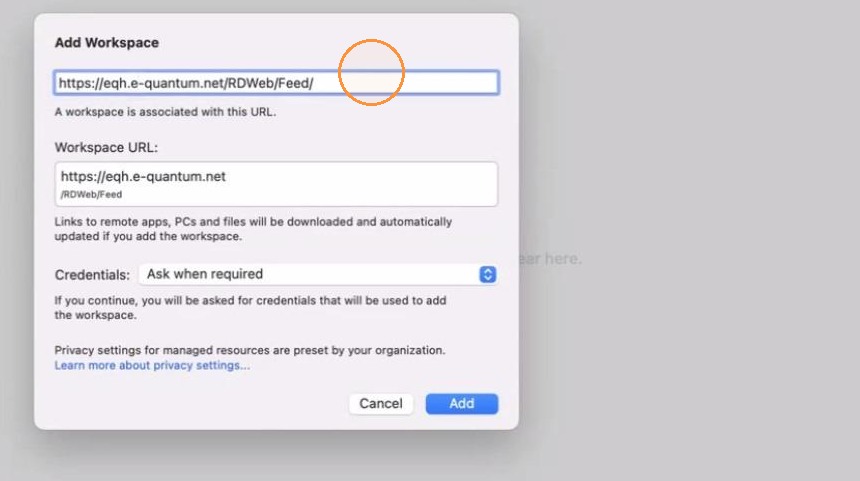
4. Click the "Credentials" dropdown and choose "Add Credentials".
5. Input remote desktop username and password. A friendly name is optional, but it is helpful for identifying logins. Once everything is filled out click "Add".
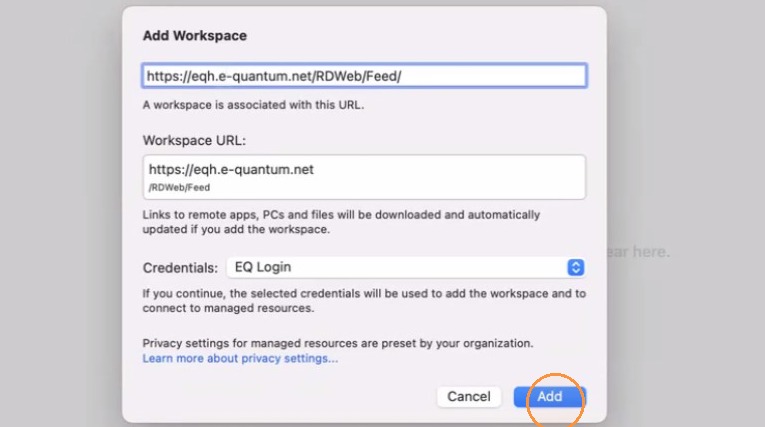
6. Click "Add".
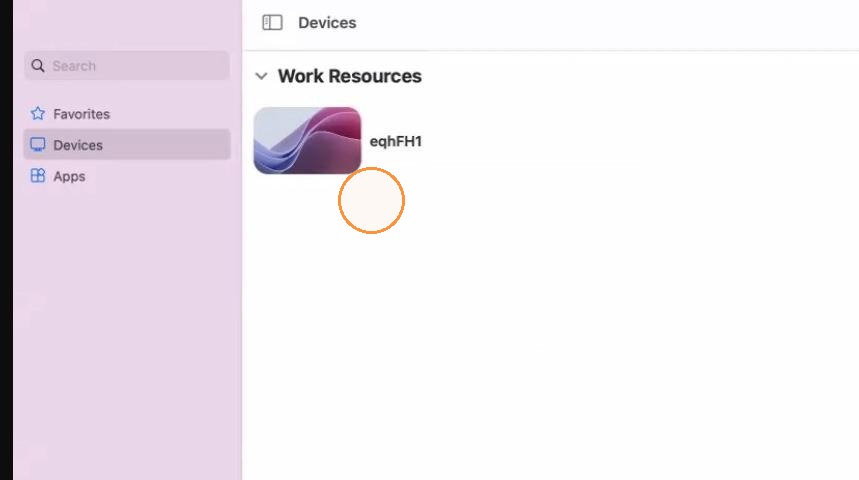
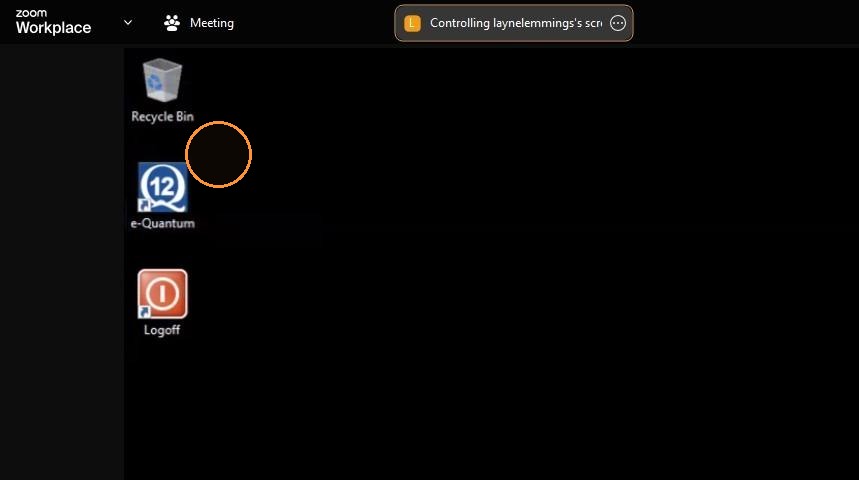
7. The connection will show as eqhFH1, eqhFH2, or eqhFS1. Double-click to open the connection.
8. You can now log into the EQ software from the remote desktop.
Tip: Contact DemandBridge support If you have further questions.