
EQC: Cost Center Budget Setup
Cost center budgets are used in Q-Net to limit the ordering amount for cost centers. The budget applies to all orders placed by users in the cost center.
The budget calculation can be based on the Login Cost Center, the Ship To Cost Center, or the Charge To Cost Center.
Cost Center Budget Setup
Cost center budgets are set for a yearly amount or a per month amount.
Yearly budget:
The amount is set for a cost center. All orders from users at the cost center decrement the amount of the budget until the balance is zero.
Monthly budget:
The annual budget amount is divided evenly across each month. The Monthly Budgets link allows you to edit each month to adjust that month's budget. The budget amount resets at the beginning of each month to that month's assigned amount.
When the cost center exceeds the assigned budget amount, the manager approval rule determines the action taken. The three actions for orders that are over the limit are:
- The user can be warned that the order is over the limit.
- The order can be rejected.
- The order can be sent to a manager for approval.
User Access
The budgets are set up and administered on the Reports tab. The administrator automatically has access to this section. Users' rights to these reports are assigned individually to each user or applied to users through their group settings.
To allow access to these reports, log on to Q-Net as the administrator. Administration > Distributor Access Administration > Administrator Login > Admin Settings > User List > select a user > Reports tab.
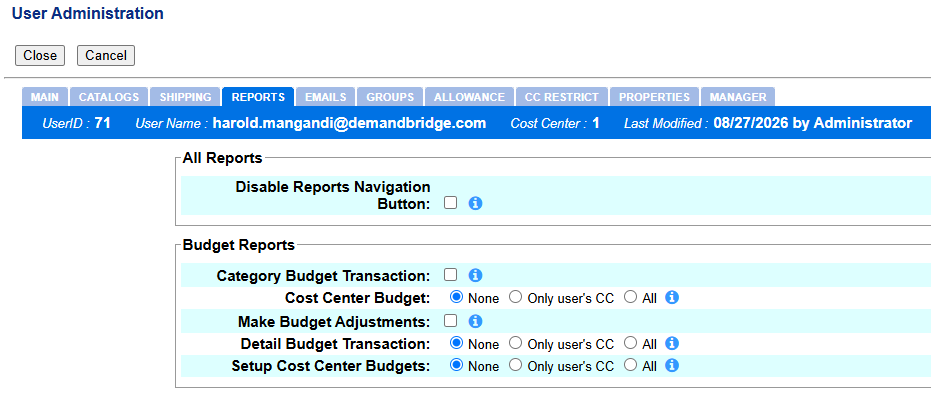
The checkbox allows the user access to the report. The radio buttons allow limiting the user’s access to the report.
- None - the user has no access to the report. The option does not display the Report tab for the user.
- Only user's CC - the user has access to the report but can only view the transactions for the user's login CC.
- All - the user has full access to the report.
Category Budget Transaction reports by category level, showing the total dollars spent for the year. The report selections include category level 1, 2, or 3 and display the current or prior year.
Cost Center Budget Report displays the total amount used per month by cost center. Selections include displaying the monthly budget amount for each cost center and the ability to adjust the monthly budget. The report can be viewed as a table, pie chart, or bar graph.
Budget Transaction Detail Report displays order information by category level. Report selections allow you to select cost center, user catalog, and item.
Setup Cost Center Budgets allows the user to set the cost center budget amounts for the current year or next year. The manager approval rule determines the action taken when the budget amount is exceeded.
Entering Budget Information
When you are logged in as the "Administrator" or as a user with rights to set up cost center budgets, go to the Reports tab. Click on Setup Cost Center Reports. Select the option to view the report and modify the values.
The report displays the current year by default. The dropdown allows you to access next year's budget.
- CCID - Cost Center ID
- Description - Cost Center Description
- Annual Budget - The cost center's total budget for the year. The amount is the annual figure or the total of the monthly budgets.
- Monthly Budgets - Allows you to enter or modify the budget for each month.
- Exceeded Basis - Determines whether the Annual Budget field applies to the entire year or is the cumulative monthly amount.
- Use Manager Approval - When selected, orders that exceed the budgets are subject to the rules in the user's manager profile.
The annual limit for each cost center is entered into the Annual Budget field. The Monthly Budgets link is used when the Exceed Basis is set to Monthly.
Note: If the field is zero, the Cost Center will not have a budget.
Exceeded Basis defines whether the budget is set on a yearly or monthly basis.
Yearly Budget:
Enter the entire annual budget amount in the Annual Budget field. The yearly amount is divided evenly into the monthly amounts in the Monthly Budgets popup. These monthly limits are ignored when the basis is set to Yearly.
Monthly Budget:
Enter the total yearly budget amount in the Annual Budget field. The individual monthly values are entered in the monthly fields of the Monthly Budgets popup. The monthly budgets can be edited to increase or decrease each month’s budget. The increased or decreased amount is reflected in the Annual Budget field. When the cost center budget for the month is reached, the manager profile determines the action taken.
Click Save when you finish editing the budget amounts. The budget is not enforced until Use Manger Approval has been marked. The manager profile rule determines what action is taken when the cost center budget has been exceeded.
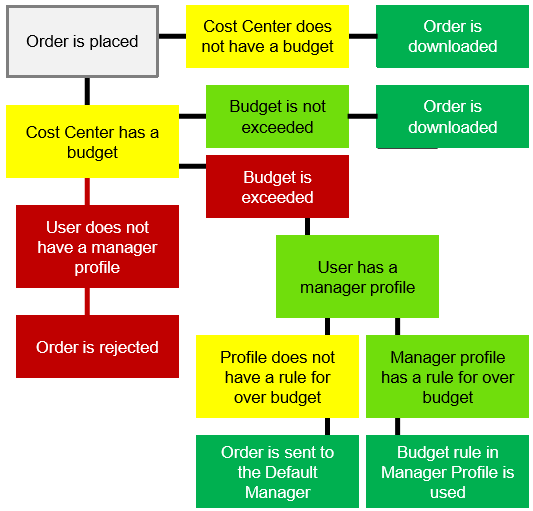
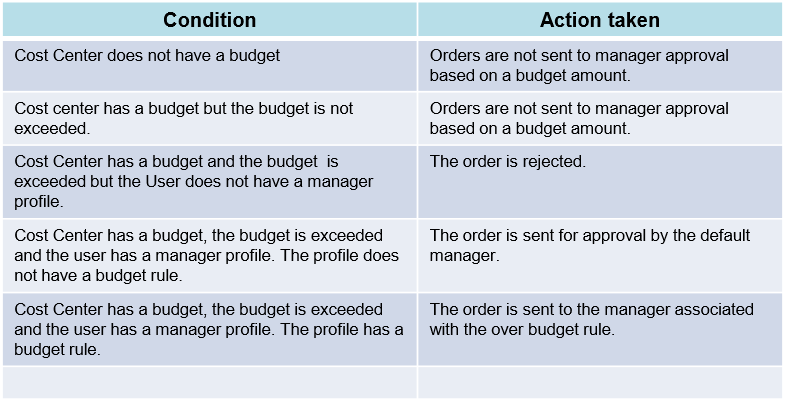
Marking Use Manager Profile activates the budget limits. This chart demonstrates the process used to determine what action is taken when the budget is exceeded.
Setting up the Manger Profile
The Manager Profile allows you to set the action taken when the order exceeds the cost center budget.
Manager Profiles are created in Distributor Setup > Administration. Log into the client site as the Administrator. In Admin, go to the Manager Approvals tab. The rule can be added to an existing profile, or a profile can be created for the rule.
For complete instructions on setting up a manager profile, in EQ/d, go to Help > Q-Resource Library > Quantum Net. View the Manager Approvals Setup document.
Edit or create a manager profile. Enter the profile default settings. In the Profile Rules section, click New.
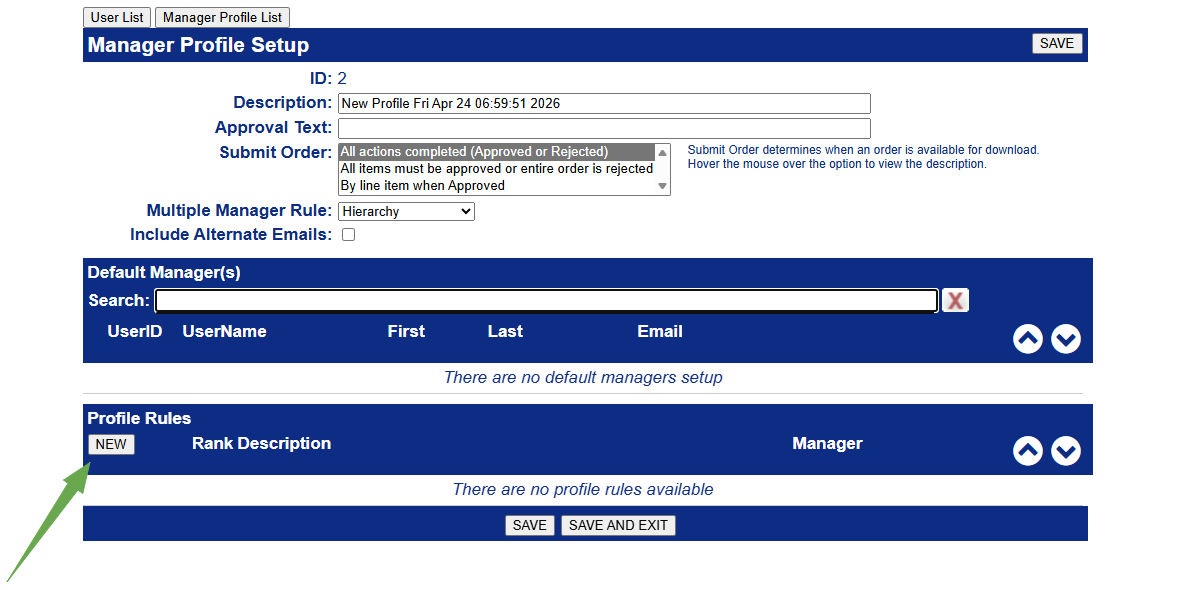
Select the Trigger Action using the dropdown. Enter a Manager if Exceed Budget orders are sent to a manager other than the profile's default manager. Mark the option for Exceed Budget.
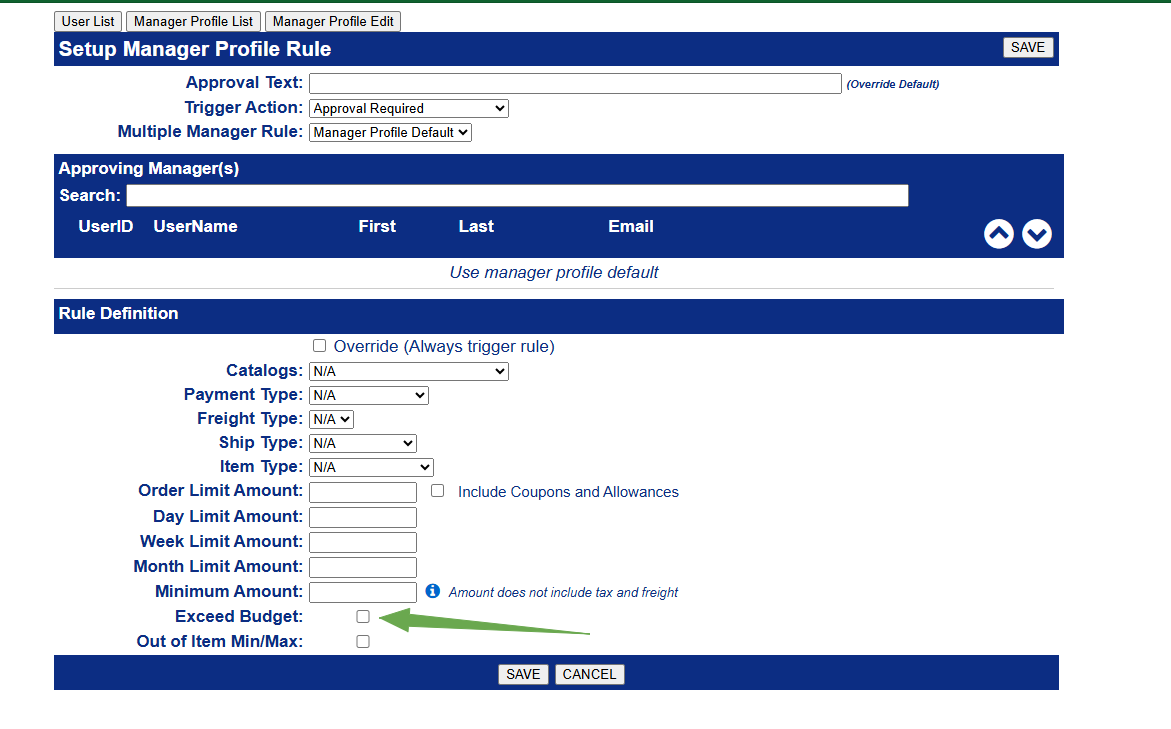
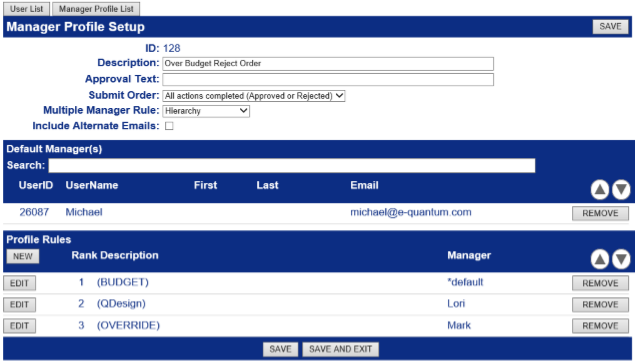
The rules are ranked in order of importance. The most important rule must be in position 1. The arrow allows you to move the rule’s position.
In the example below, the Budget is in position 1. If the order is over budget, the order is sent to the default manager for approval. If the order is under the budget, the next rule is checked.
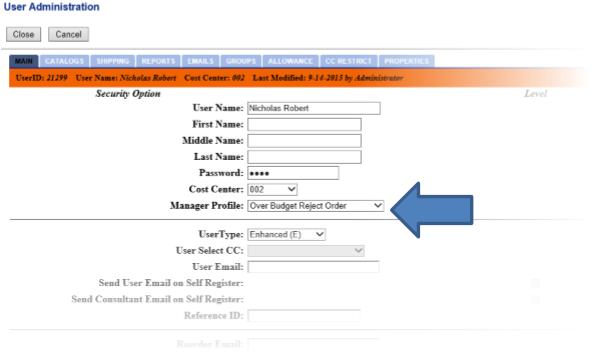
Edit the user profile to select a manager profile.
Cost Center Budget Report
The Cost Center Budget Report displays the Cost Center ID, the budget for each listed Cost Center, the dollars used each month, and the remaining balance of the budgeted amount. This report includes options to display the Cost Center Description and Cost Center Total, as well as Monthly Budgets, Sales Tax, and the option to make budget adjustments.
The Report can be run for either the current or the previous year. The report reflects only purchases from Q-Net. By default, the figures are calculated by the Login Cost Center. The Budget Calculation Mode can be set to Charge-To or Ship-To.
Clicking column headings will change the sorting of the information in ascending or descending order. An asterisk indicates that the budget has been manually adjusted.
Budget Calculation Mode
The Budget Calculation Mode determines which cost center is used to calculate the budget. The options allow using the Login CC, Ship-To, or Charge-To. The option is located in Distributor Setup > Setup > Site Options > Budget.
Budget Adjustments
The amount can be adjusted to increase or decrease the total used budget figures. Users with the right to adjust budgets will have the option to make adjustments. This displays as an option on the Cost Center Budget Report.
Log on as the user with the appropriate rights. On the Reports tab, go to the Cost Center Budget Report. The enabled user will have the option to Make Budget Adjustments. To make the adjustments, select Yes in the Yes field and run the report for the current year.
On the report, locate the cost center and the month to be adjusted. Click on the total; a popup screen will appear showing the orders that have been placed for that cost center for that month. The bottom section will display any previous adjustments.
- To make a new adjustment, click Add Adjustment:
- Enter the remarks for the adjustment in the description field. Enter the amount to be adjusted in the Amount field. In the Amount field, use the Enter key to complete the adjustment. Save the adjustment and click Save Adjustment:
- The adjustments display in the Adjustments section at the bottom of the window.
- To exit the window, click Close in the upper-right corner.
An asterisk next to the amount on the report indicates the amount has been manually adjusted. Click to view the transactions and the adjustment for the cost center.
Detail Budget Transaction Report
The Detail Budget Transaction Report can be generated by cost center and/or user. It includes the type of catalog items that were ordered, the item ID or description, the min/max range, the ordered date range, or the order number range.
The report can be sorted by the headings in ascending or descending order. The Status field will display if the order is pending approval.
Custom Message Variables
The following variables can be used in a custom message area:
- [%BudgetAmount] - displays the starting budget amount
- [%calcBudgetUsed] - displays the used budget amount
- [%calcBudgetBalance] - displays the remaining balance
Event Log
The Event Log is a record of changes to the Budget Setup. This report lists the Client ID, Event Type (currently shown on BS for Budget Setup), Date, Time, IP address of the user, User ID, the user’s email address, and a description of the event.
To access the log, go to Distributor Reports > Event Log in Distributor Setup.
The user ID is the ID assigned by Q-Net when the user is created. A list of the users and their Q-Net user IDs can be found in Distributor Reports > Q-Net Users on System.