
EQD: DBPay Overrides - Copy Settings
EQD: DBPay Overrides - Copy Settings To Other Clients, Consultants, Or Departments
🔵 Overview DBPay overrides now include a Copy option. It lets you copy every setting on a tab from one client, consultant, or department override record to one or more other records of the same type, instead of re-entering them manually. Department and Consultant copies use a checklist of targets; Client copies use a From/To client ID range instead.
Navigation: DBPay Overrides > Client / Consultant / Department tab
Copy Overrides To Another Department Or Consultant
On the Department and Consultant tabs, targets are chosen from a checklist.
- Go to DBPay Overrides.
- Open the Department or Consultant tab.
- Select the source record whose settings you want to copy.
- Click Copy.
- From the checklist, check one or more target departments or consultants.
- Confirm the copy.
Copy Overrides To Another Client
The Client tab works differently — instead of a checklist, targets are chosen with a From/To client ID range.
- Go to DBPay Overrides > Client tab.
- Select the source client whose settings you want to copy.
- Click Copy.
- Enter a From client ID and a To client ID to define the range of clients to copy to.
-
Confirm the copy.
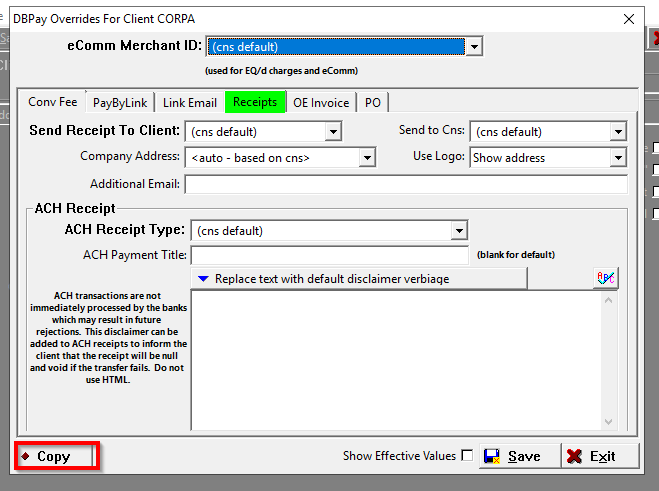
DBPay Overrides for a client - Copy button, at the bottom left of the screen
💡 Note To copy to a single client, enter the same client ID in both the From and To fields.
💡 Note Because the Client tab uses a From/To range rather than a checklist, there's no itemized list of which client IDs received the copy — the confirmation shows how many clients within that range were updated. This is expected behavior for the range-based Client copy.
💡 Note In all cases, Copy applies every field on the tab, not a subset, and it saves automatically — no separate Save step is needed. The source record itself is not changed by the copy.
Copy Targets Stay Within The Same Record Type
Copying from the Client tab only offers other clients as targets. The same applies to the Consultant and Department tabs — targets are limited to the same record type as the source.
If You Don't Select A Target
If you click Copy without choosing a target, the action is blocked until you select one.
Canceling A Copy
If you cancel or close the Copy dialog without confirming, no changes are made to any target.
Reset Defaults Has Been Removed
The Reset Defaults option, previously available in Client Maintenance > Tools, has been removed now that Copy is available.
Frequently Asked Questions
Q: Which tabs support Copy?
A: Client, Consultant, and Department. Copy is not available on the AR Config tab.
Q: How do I choose which records to copy to?
A: On the Department and Consultant tabs, you check targets from a checklist. On the Client tab, you enter a From/To client ID range instead.
Q: Can I copy a client's settings to a consultant or department?
A: No. Copy targets are limited to the same record type as the source — clients to clients, consultants to consultants, departments to departments.
Q: Does copying change the source record?
A: No. The source record is unaffected by the copy.
Q: Do I need to save after copying?
A: No. Copy saves automatically.
Q: What happened to Reset Defaults?
A: It has been removed from Client Maintenance > Tools now that Copy is available.
Q: When I copy to a range of clients, why can't I see which client IDs were included?
A: The Client tab's Copy uses a From/To range rather than a checklist, so there's no itemized list of IDs — only a count of how many clients were updated. This is expected for the range-based Client copy.
Q: How do I copy settings to just one client?
A: Enter the same client ID in both the From and To fields.
Tags: dbpay-overrides, copy-overrides, client-tab, consultant-tab, department-tab, reset-defaults, dbpay-config