
Royalties Configuration and Usage Guide
This document provides detailed instructions on configuring and using the Royalty Code feature in e-Quantum, including setting up royalty rates, defining royalty codes, and generating royalty reports.
1. The Royalty Code feature in e-Quantum is used to compensate a third party based on a percentage of the profit, percentage of sales or a dollar amount. The royalties can be applied at either the client level or at the item level.
2. To begin you need to first setup the royalty rate, which is done through the Commission Setup function. Go to O/E>O/E Maintenance>Consultant Information>Commission Setup, click on Add.
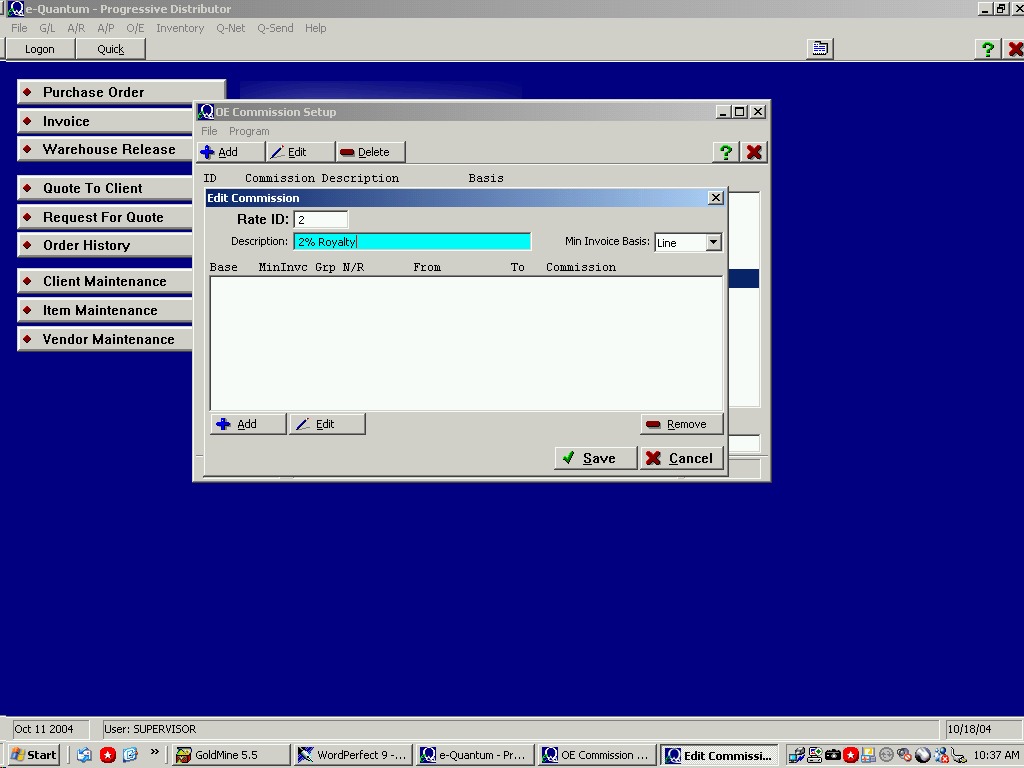
3. Rate ID: Enter the ID for the rate you are entering. Description: Enter the description for this rate. Min Invoice Basis: This should be left at Line. Click on Add.
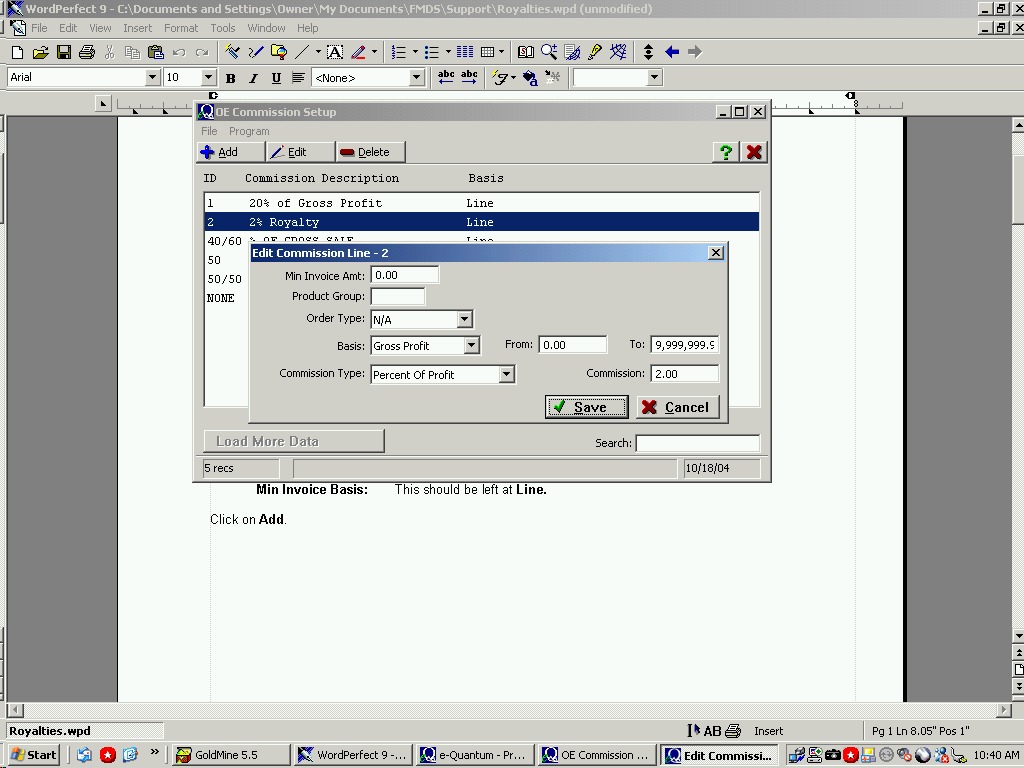
4. Min Invoice Amt: If this royalty has to meet a certain invoice amount before being paid enter that amount here. Product Group: If this royalty is for a specific product group enter the ID for it here. Order Type: If this royalty is to be based on new or repeat orders select either New or Repeat from the drop down. If it is on all orders leave this field at N/A. Basis: and From: To: These three fields work in conjunction with each other, the From and To fields are the ranges for the Basis. The basis tells the system what criteria, Gross Profit, Total Invoice or Percent of Profit., to use to calculate the commission. Commission Type: This field tells the system how the commission is paid, Percent of Profit, Percent of Sales, or Dollar Amount. Commission: This field determines how much the commission is to be in either percentage or dollars. Click on Save.
5. The next step is to define the Royalty Code Setup. This step tells e-Quantum which vendors are to receive a royalty and their applicable rate. Go to O/E>O/E Maintenance>
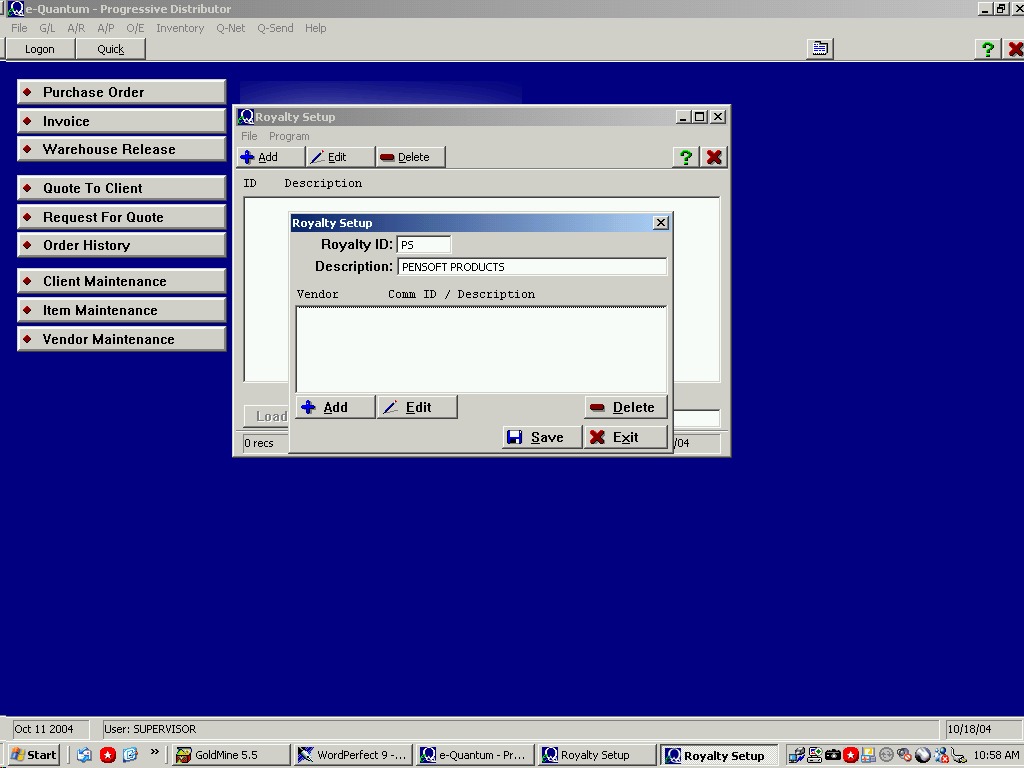
6. Royalty ID: Enter the ID for this royalty structure. Description: Enter the Description for this structure. Click on Add.
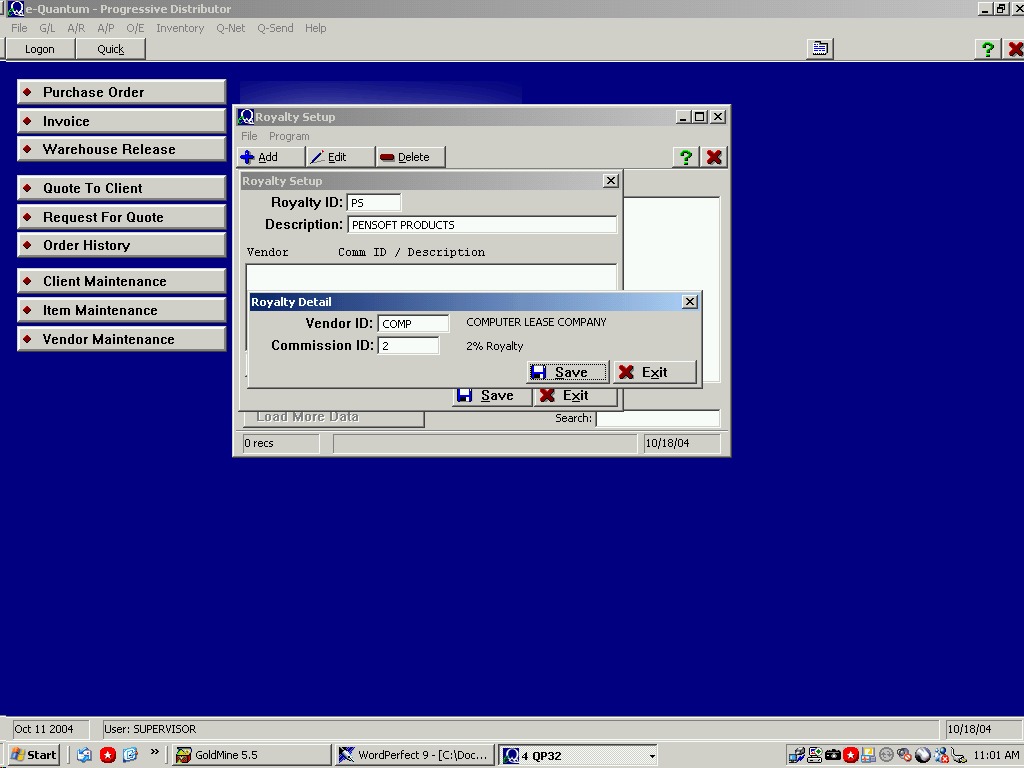
7. Vendor ID: This field tells the system who you are going to pay the royalty to. Enter the vendor’s number. Commission ID: This field tells the system how much you are going to pay to this vendor. Enter the ID (created in the previous step). Click on Save. If you are paying this royalty to more than one vendor click on Add and follow the step above. When you are finished adding the vendors click on Save then exit the Royalty Setup screen.
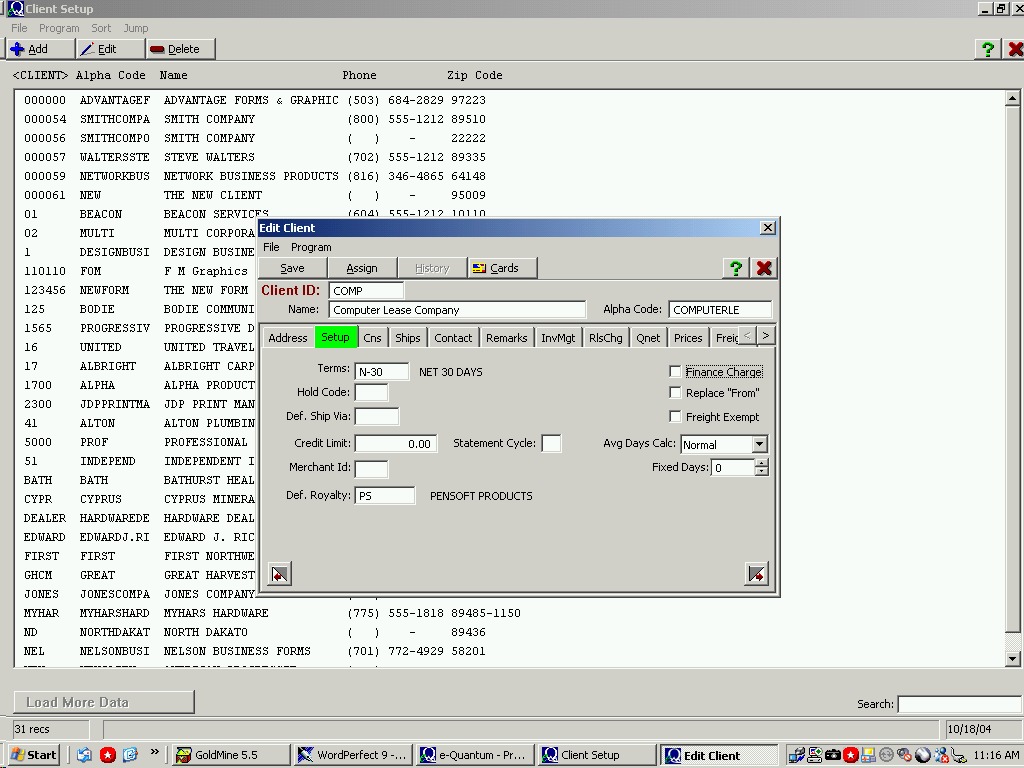
8. Royalty is paid based on the Client: If the royalty you are paying is based on the client, rather than the item, you will need to go to Client Maintenance, select the client and enter the royalty code ID in the Def. Royalty code field on the Setup tab.
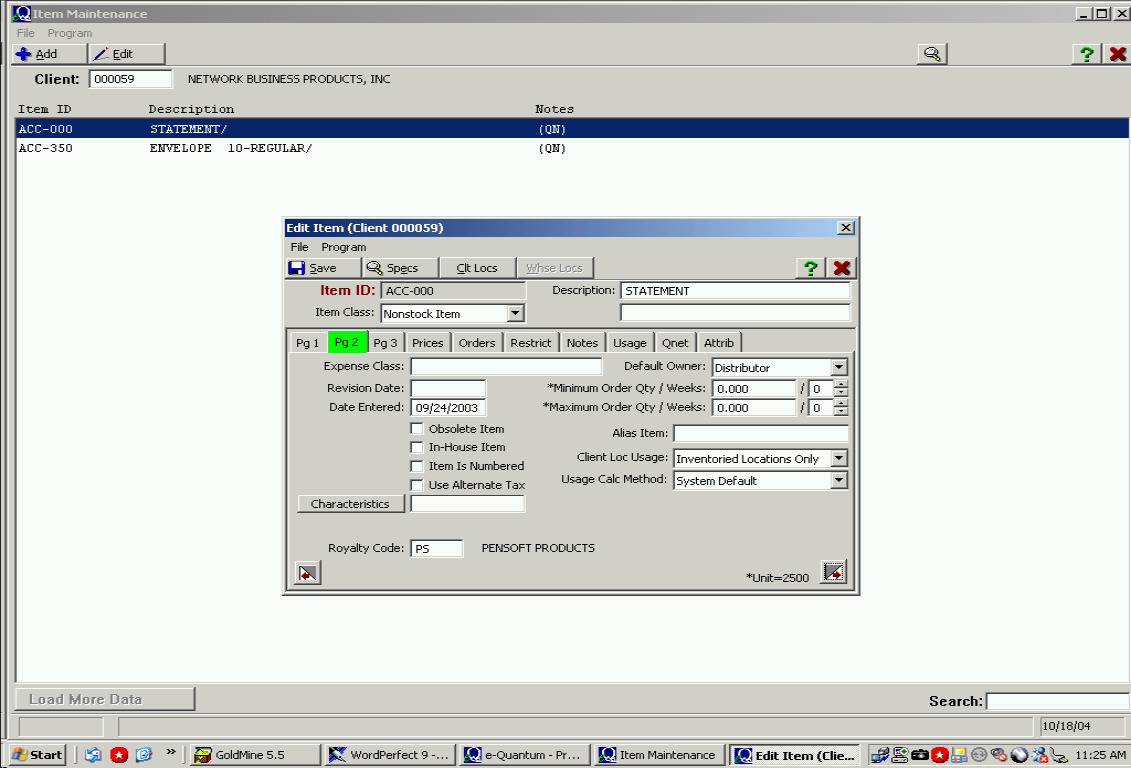
9. Royalty is paid based on the Item: If the royalty you are paying is based on the item, rather than the client, you will need to go to Item Maintenance, enter the client, select the item and enter the royalty code ID in the Royalty Code field.
10. Royalty Report: Part of your month end procedure should be to run the Royalty Report, same as the Commission report, and post it. During the printing of this report you will have the option to tell e-Quantum to create the vendor invoice for you. To print this report go to O/E>O/E Period End>Royalties>Royalty Report
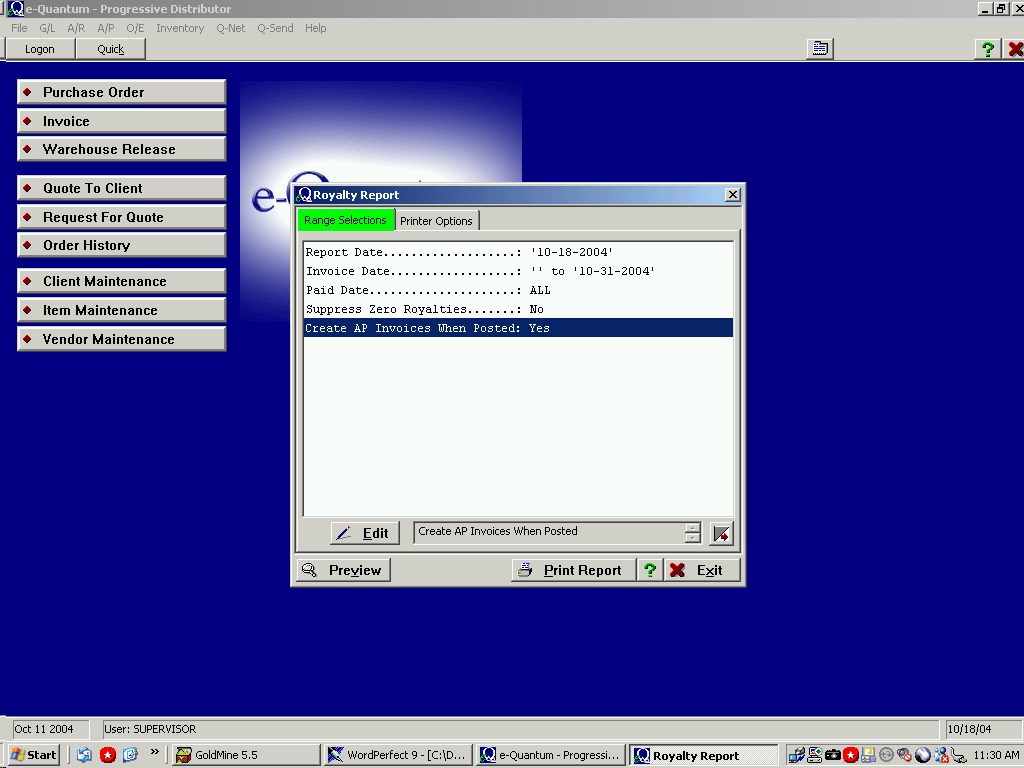
11. Report Date: This is the “as of” date that prints in the header area of your report. Invoice Date: This is the ending date for your report. If you enter a beginning date the report will not give you the option to post nor will it create the invoice in accounts payable. Paid Date: This is also an ending date for the report. Suppress Zero Royalties: This is either a Yes or No option. If you say Yes then the invoices whose royalty calculated at zero will not print on this report. If you say No then all invoices (with a royalty) will print on this report. Create AP Invoice when Posted: This is either a Yes or No option. If you say Yes e-Quantum will create an invoice in AP, for the applicable vendor(s), with and invoice number beginning with and R - the date of the invoice- and a sequential number. Example; R-20041031-000
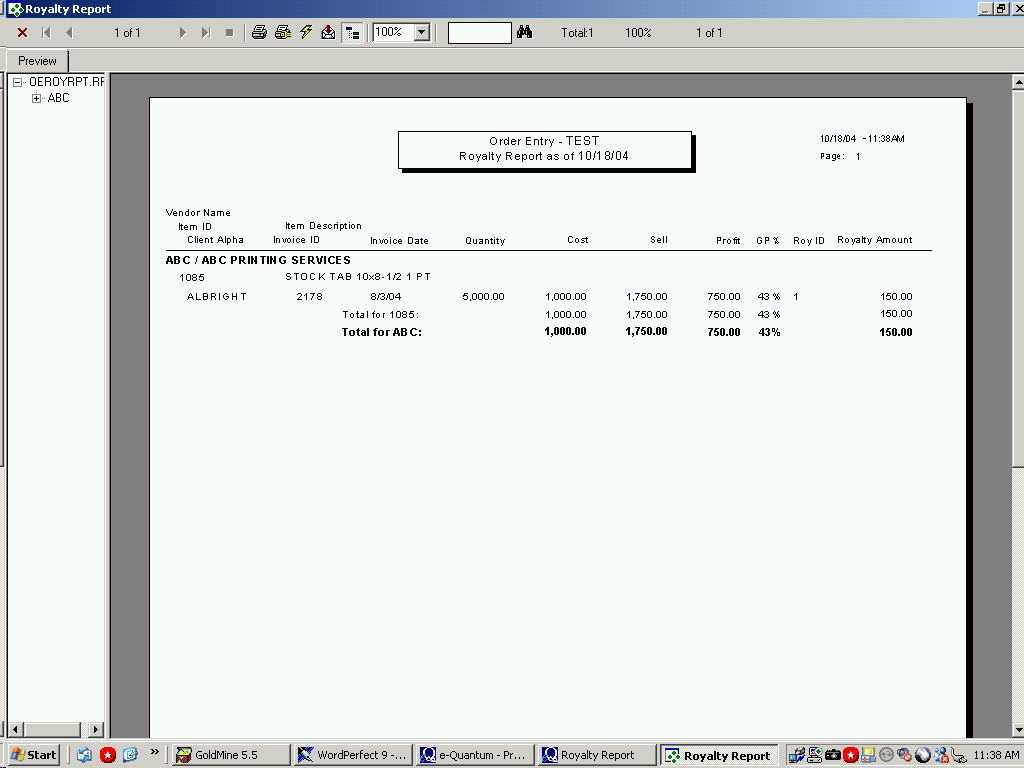
12. Note: Posted Royalty reports can be re-printed through the re-print option.