
EQD: Setting Up Connection to EQD remote Desktop on an iPad or iPhone
This guide provides instructions for accessing the EQD remote desktop on your iPad or iPhone
Alert: Note: You will need your username and password to access the remote desktop. This is not the same as your username and password to access the eQuantum software.
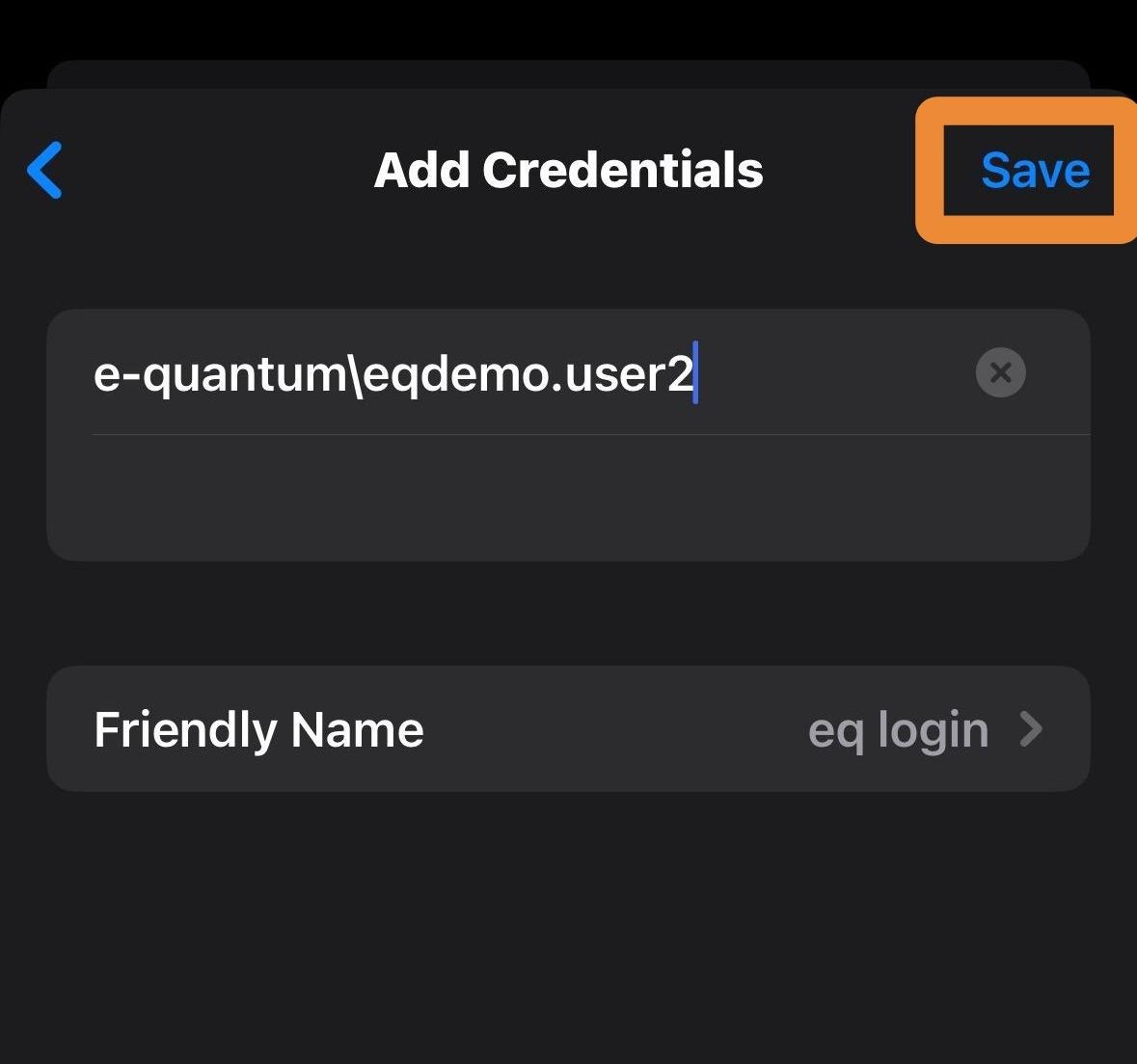
- This login info is created by Demand Bridge. The user name is formatted like: e-quantum\john.smith
- The password will be a random series of 8 letters numbers and characters,
- If you do not have this login info the only option is to reset the password since we do not keep a record of user passwords. Please contact DemandBridge support if you need a password reset.
Tip: You can set up the connection to the EQD Remote Desktop on an iPad or iPhone. However be advised, that the EQD hosted enviroment is not adapted for those platforms so the navigation can be somewhat cumbersome.
If your iPad has a keyboard and mouse or touch pad you will probably have an easier time navigating with those than the touch-screen.
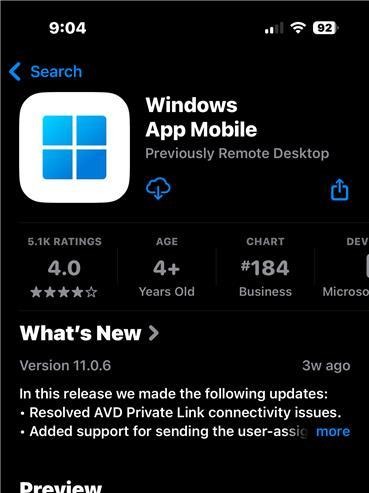
1. Go to the App store and search "Windows App Mobile". Download this app and open.
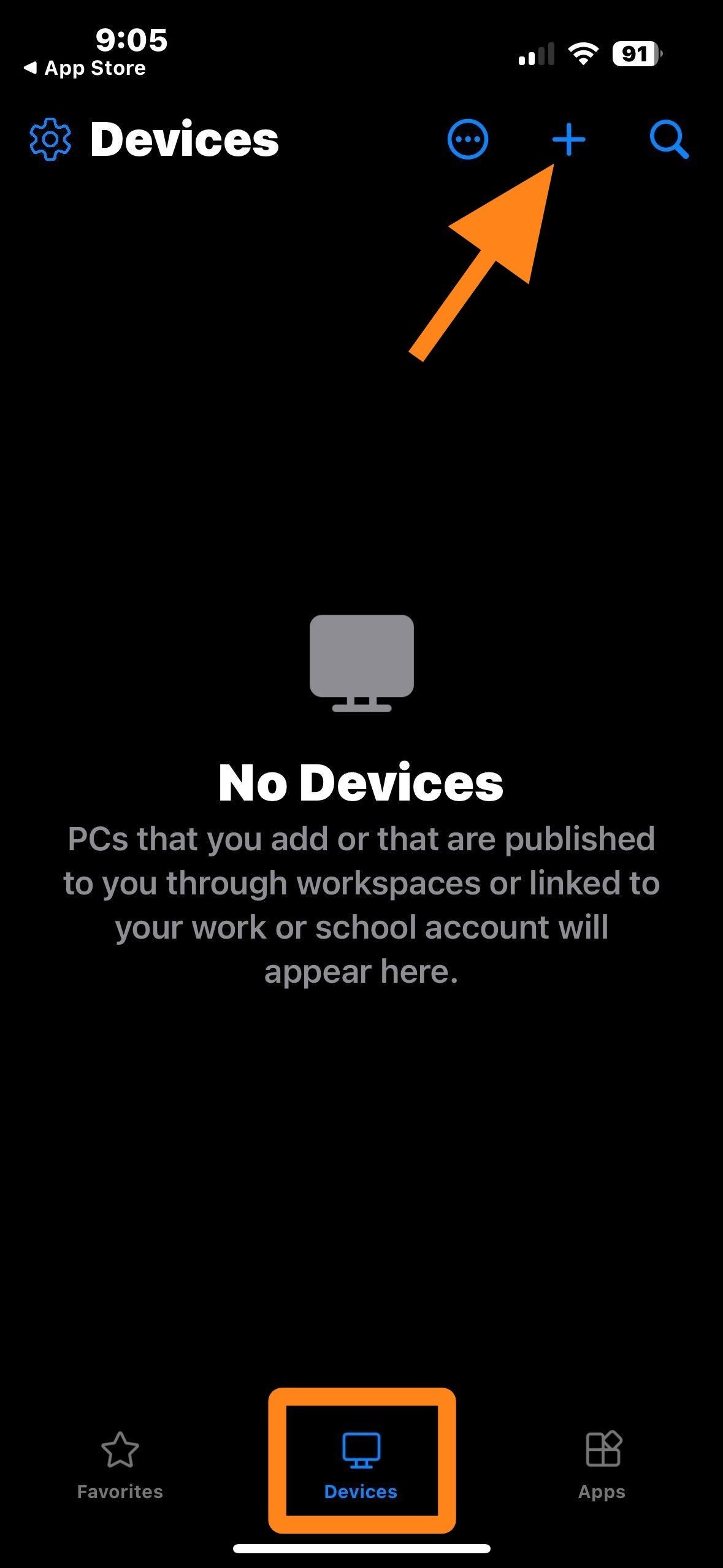
2. Make sure you are on "Devices" then click the "+".
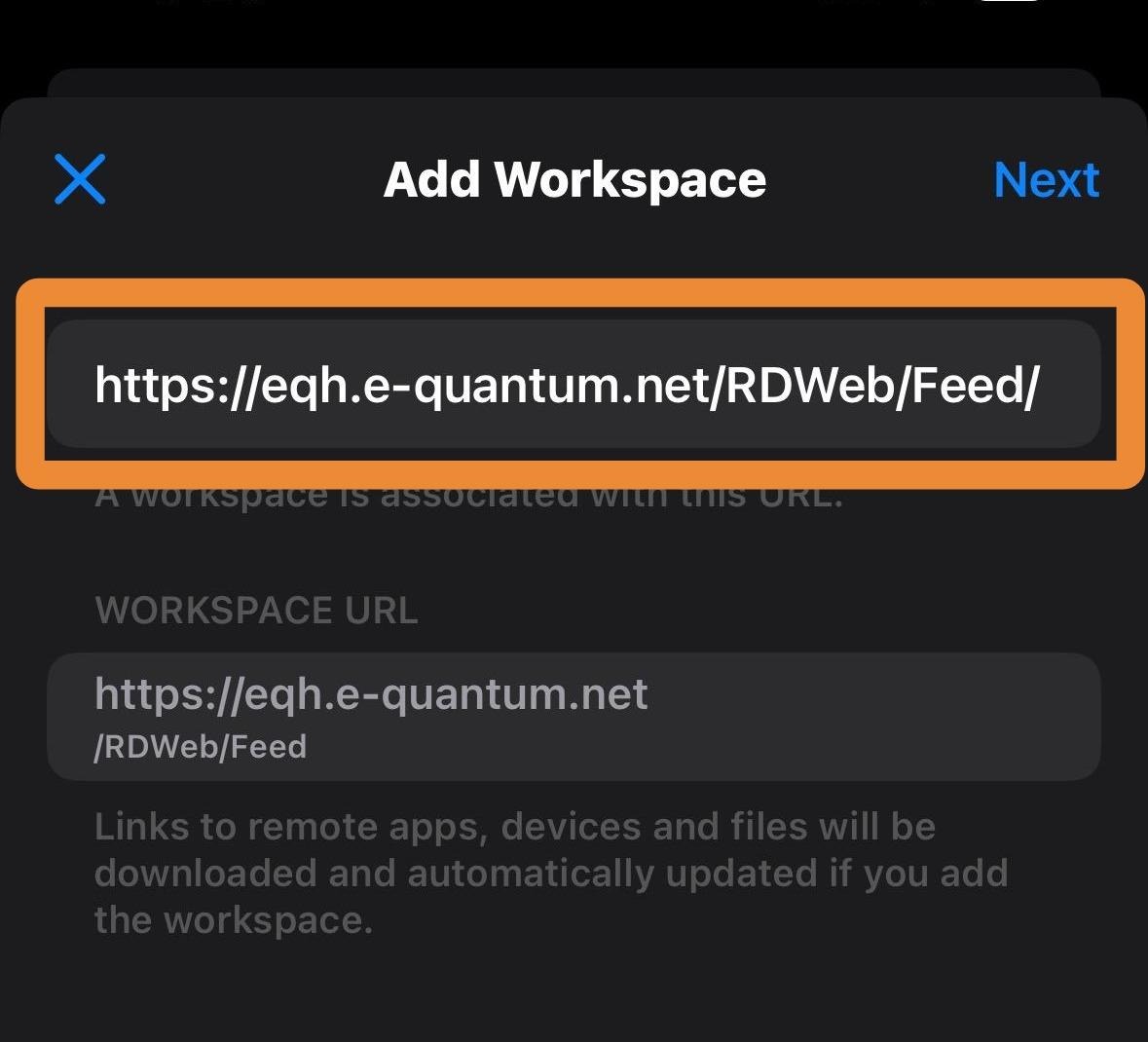
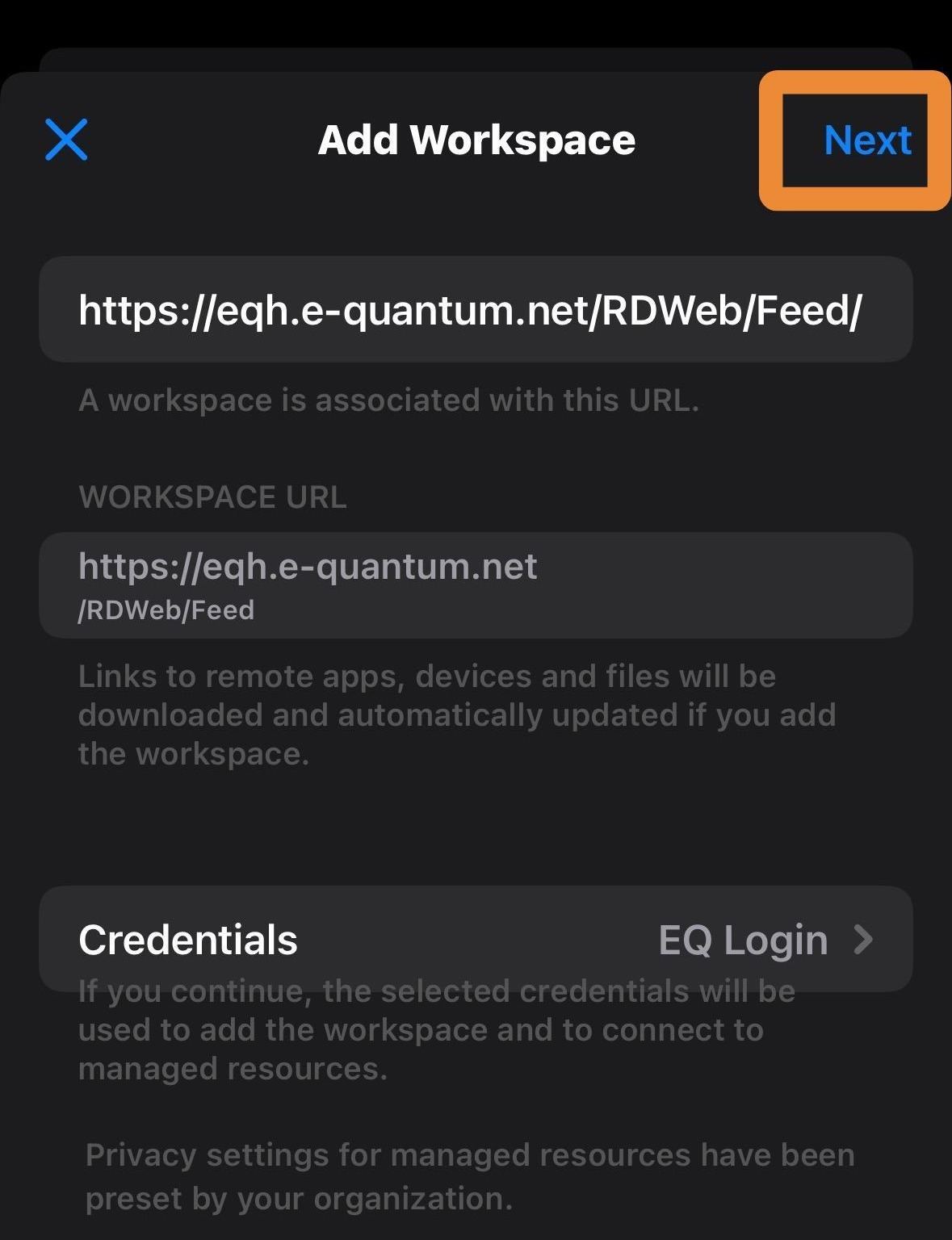
3. Put in this URLhttps://eqh.e-quantum.net/RDWeb/Feed/
4. If you don't want to have to put your credentials in every time drop down the "Credentials" field.
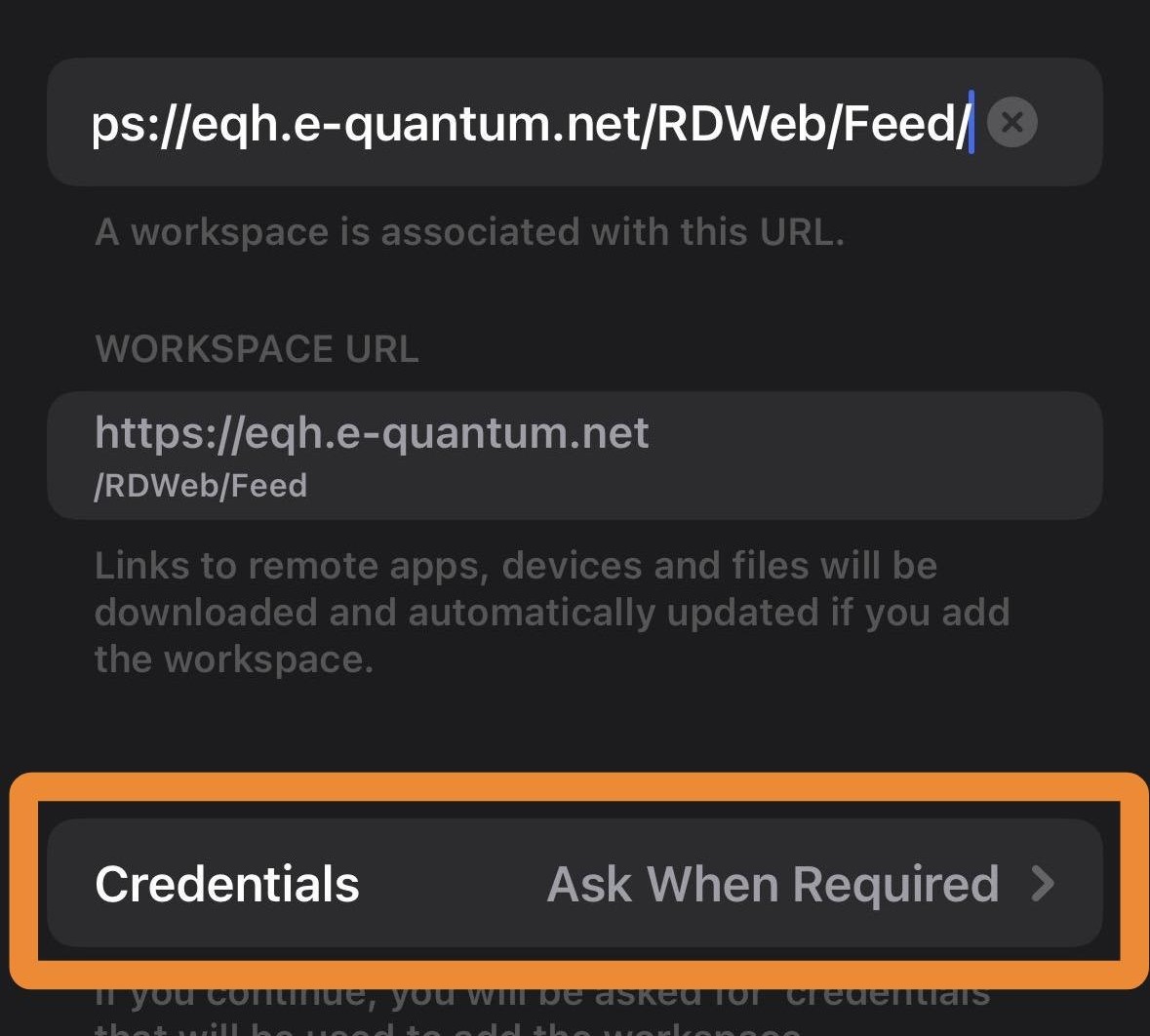
5. Add you remote desktop user name and password and a Friendly Name, then touch "Save".
6. Once everything is filled out touch "Next".
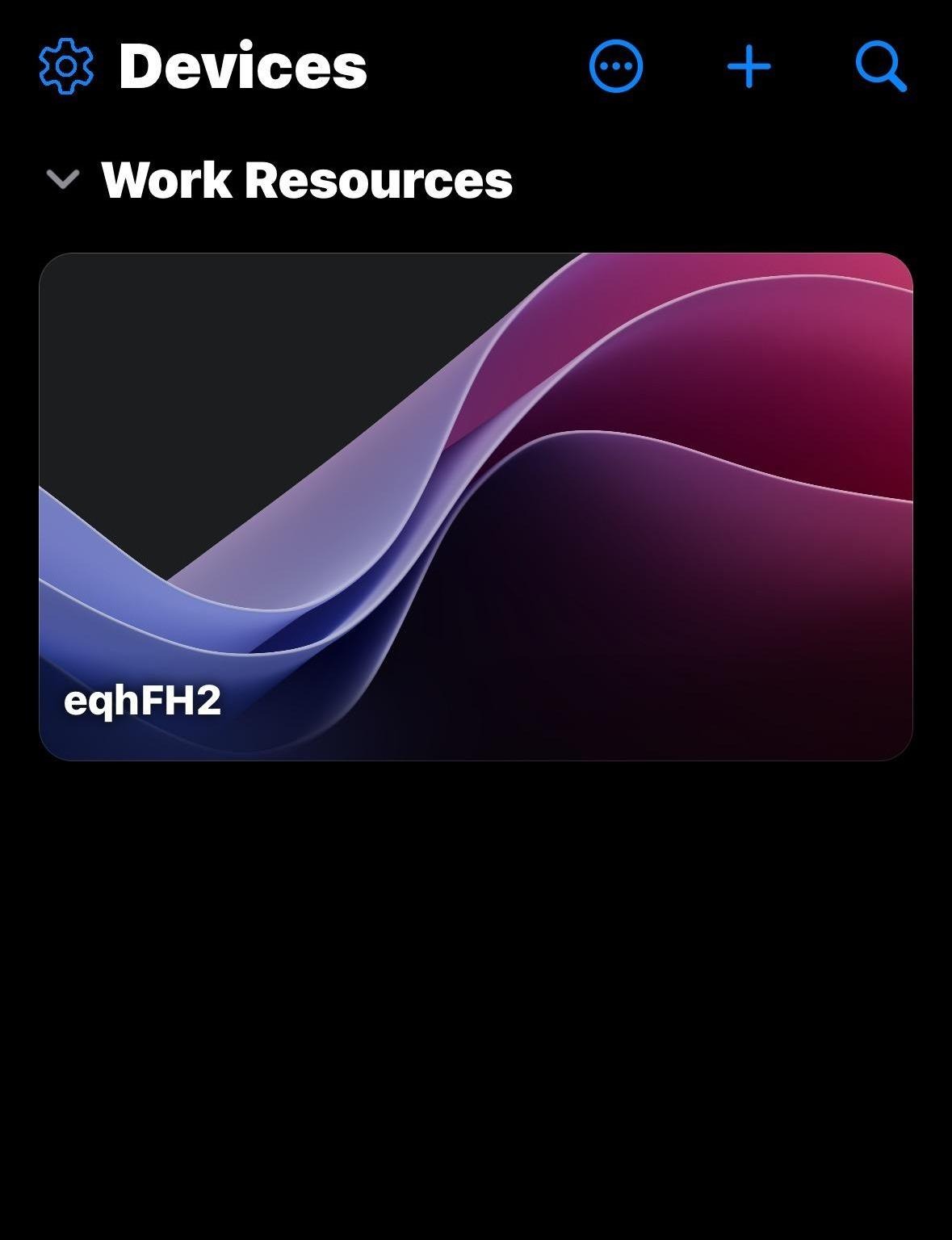
7. You should see an eqhFH1, eqhFH2, or eqhFS1, touch this to connect to the remote desktop.
Tip: If you have any further questions please contact DemandBridge support.