
EQD: TSPrint, Printer Redirection
This guide provides the steps for configuring dynamic printer redirection in the TSPrint client software. This only applies to EQ users that are hosted in the Azure hosted environment.
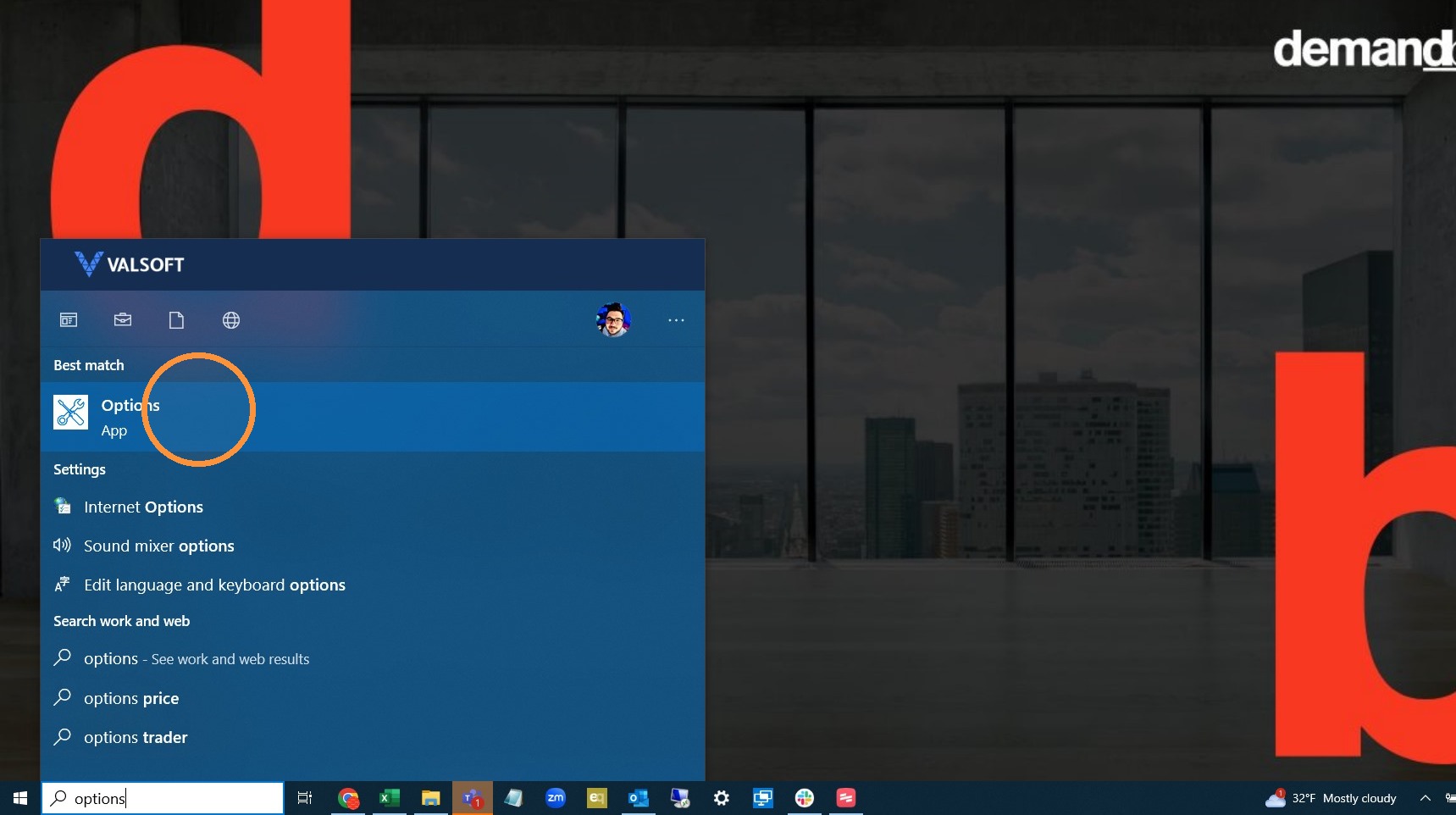
1. On your local computer type "options" in the start menu. Open the "TSPrint Client Options".
2. Go to the "Redirection" tab and check the printers you need to have access to.
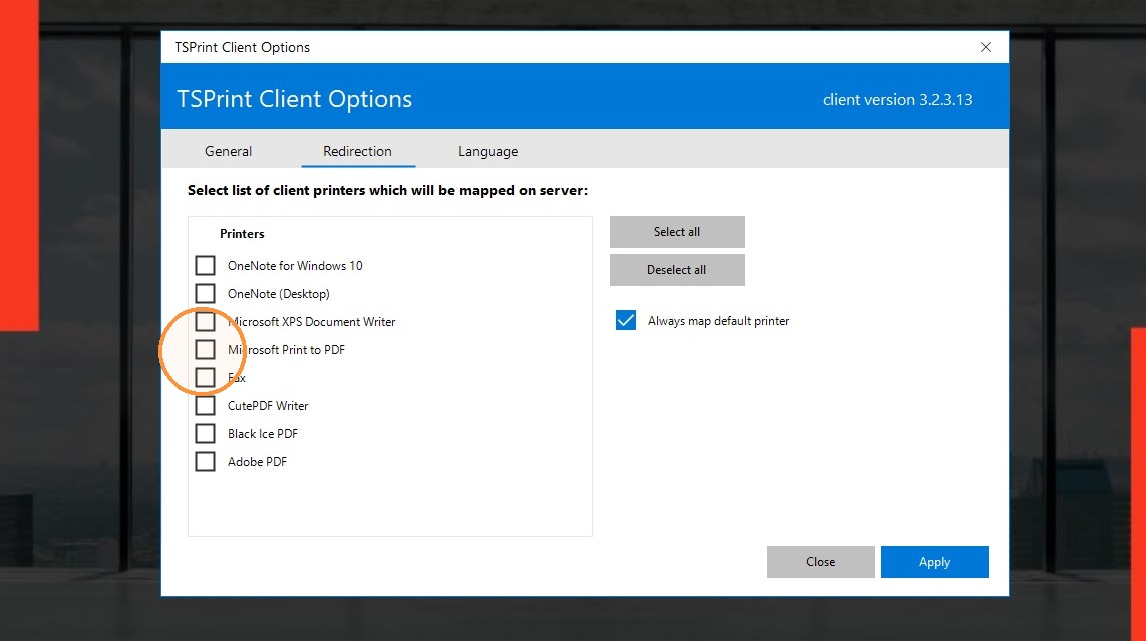
Alert: Note: only choose the printers that are necessary. If you are not sure if you need a printer don't check it. You can always go back and check it later if it is needed.
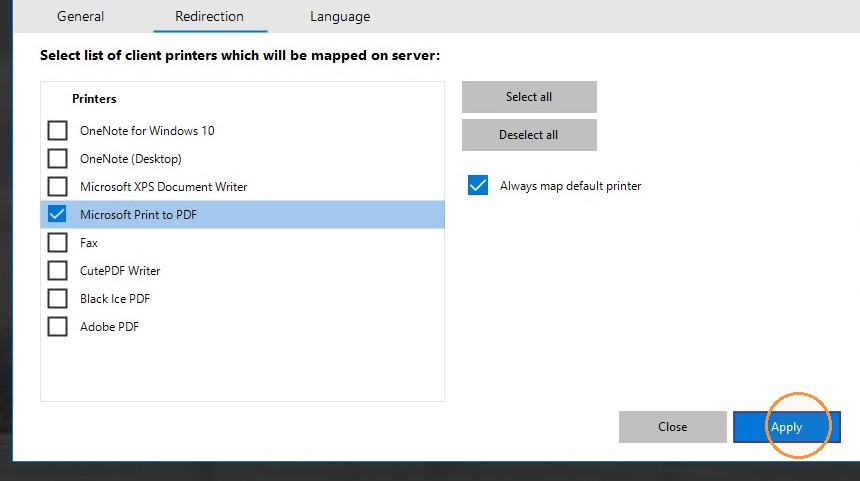
3. If you want your default printer to also show as the default in the remote desktop check the "Always map default printer" box. Click "Apply" when you have made your selections.
Tip: If there is a long list of printers in the "printer options" tab in EQD ,including old printers that are not used anymore, the "legacy load printer" option in EQD workstation preferences likely needs to be turned off. Click here to see how to do that.
Tip: If you have any further questions contact DemandBridge support.