
EQD: Use MS Edge as the Default to Open HTML files.
This guide provides step-by-step instructions for setting Microsoft Edge as the default program for opening HTML files in the EQD remote desktop environment.
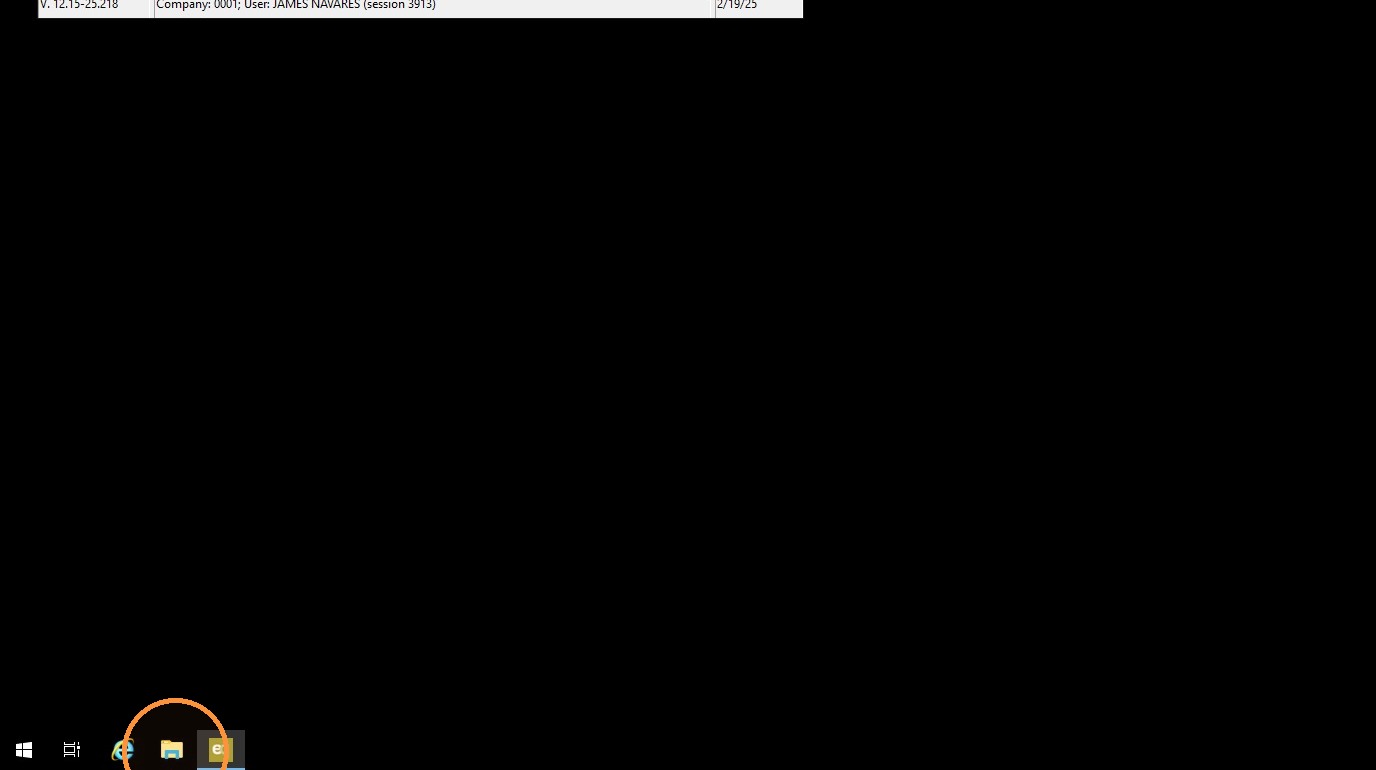
1. Open the file browser in the remote desktop (the yellow folder at the bottom).
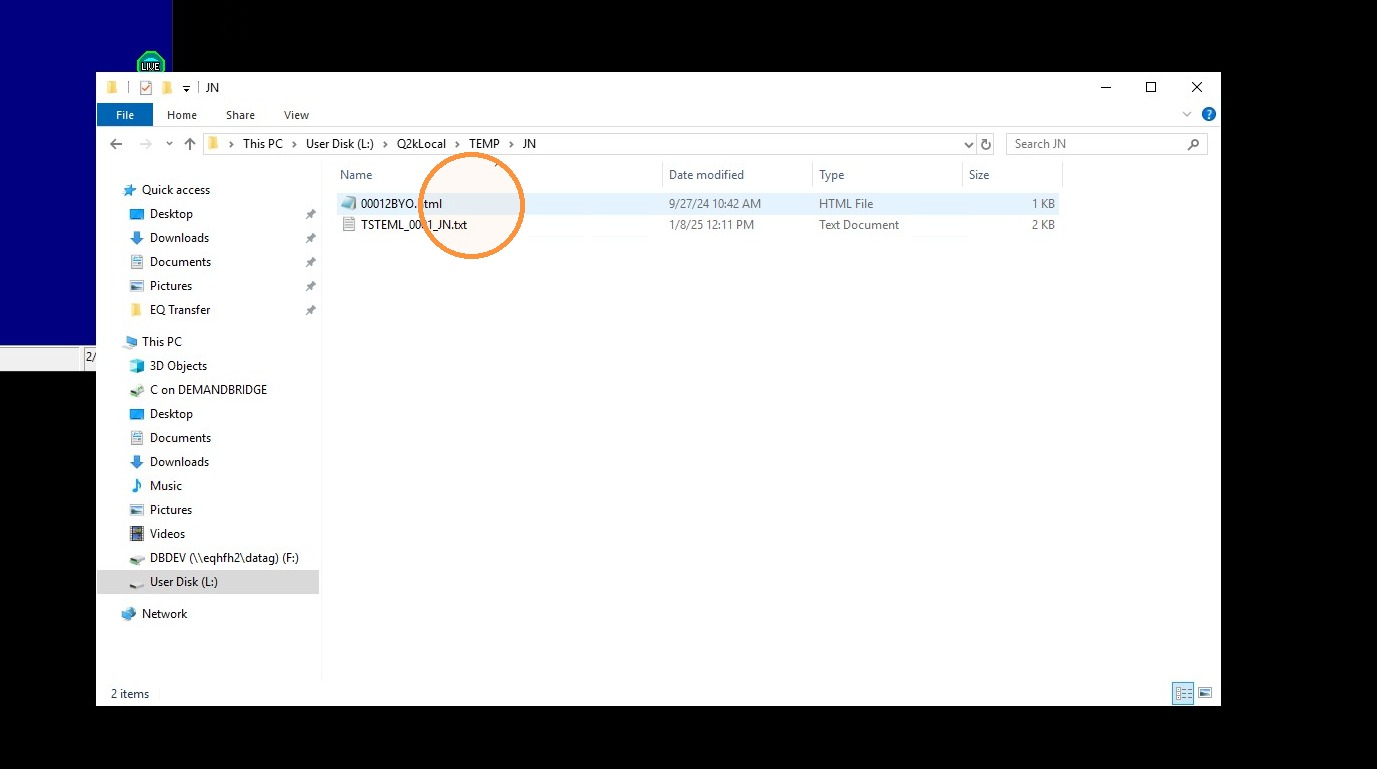
2. Go to L:\Q2kLocal\TEMP\”user initials"
Note: if you do not see the L: you need to launch EQ then it will appear.
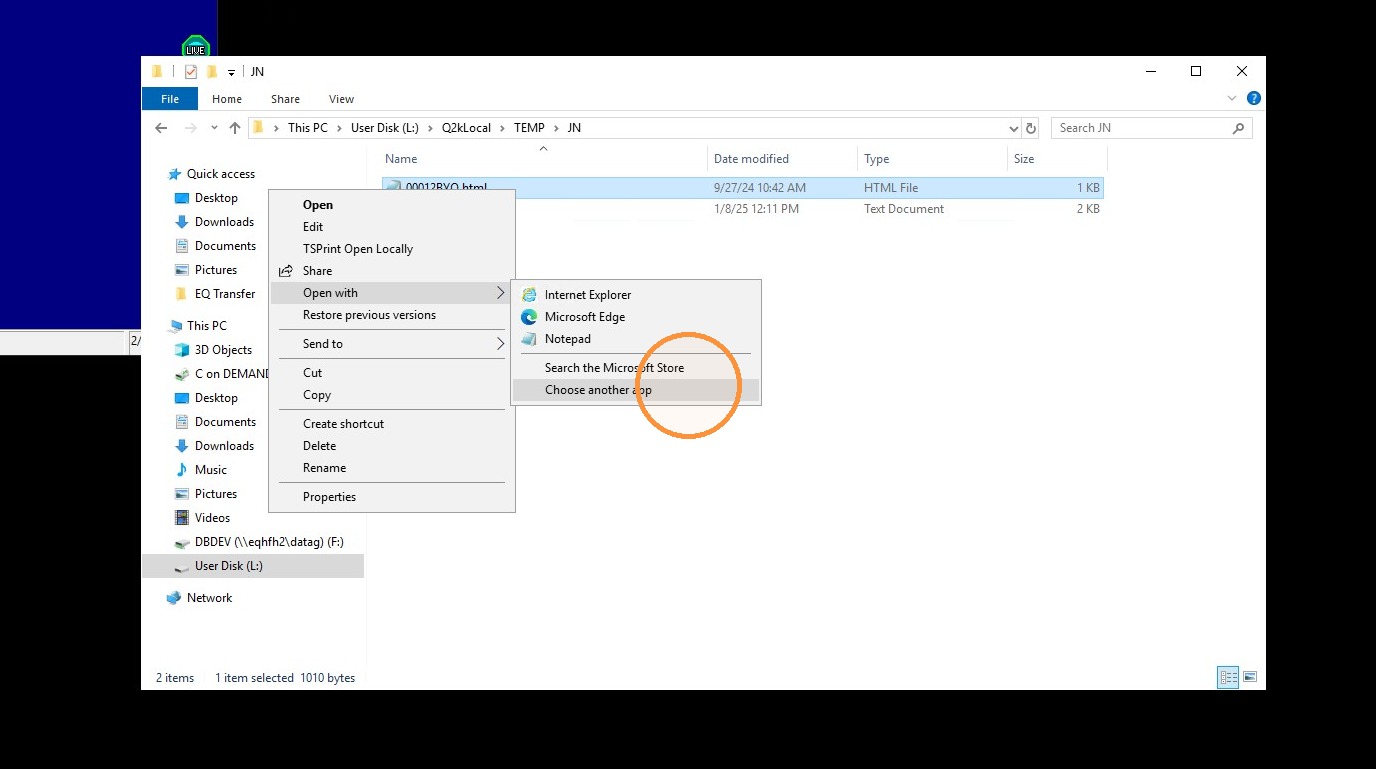
3. Right-click on the HTML file and go to Open With> Choose another app.
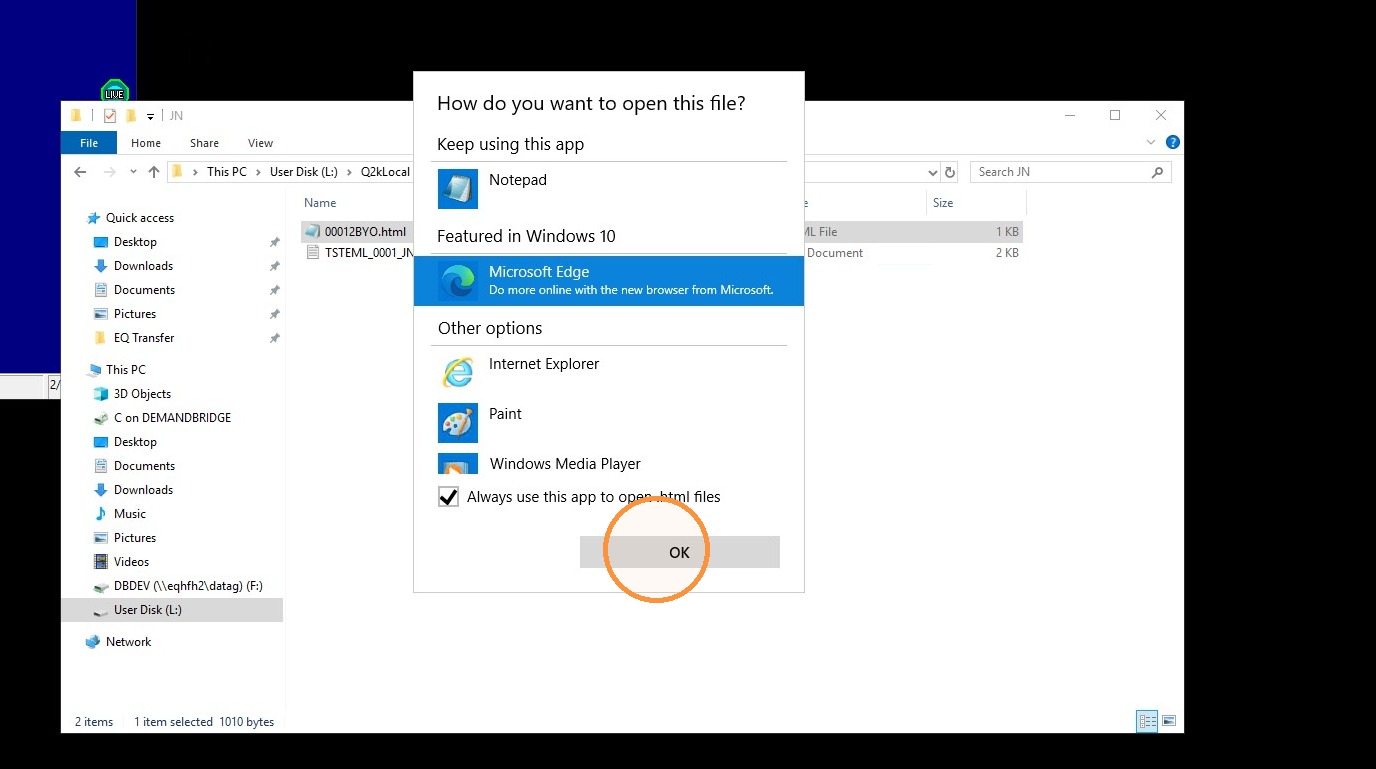
4. Choose Microsoft Edge. Check the box that says "Always use this app to open .html file". Then Click "OK".
Alert: If this is the first time you have used Edge in the remote desktop it will ask you some questions. CLICK HERE to see the steps to complete this initial Edge introduction.
Tip: If you have further questions, reach out to Demand Bridge support.