
DBD: Automatic Requisitions & Restocking
This article details the preliminary configurations, field parameters, and report execution steps required to successfully generate automatic inventory requisitions in DB Distributor.
⚠️ Core System Rules to Remember
Before initiating this workflow, ensure your target inventory and location configurations meet the following technical criteria:
- Release Type Consistency: All associated releases must be uniform—either entirely "R" (Requisition) type releases or entirely "W" (Warehouse) type releases. The system cannot process a hybrid mix of both types on the same automated pass.
- Warehouse Consistency: All releases must originate from the exact same physical warehouse code.
Customer Ship-To Configuration
To allow the automated engine to capture and process stock balances, you must first map the tracking rules within the customer's shipping address profile.
- Navigate to: Accounts Receivable ➔ Setup ➔ Customers
- Select your target Customer from the system query list.
- Click Ship-to Location Setup
- Select the specific Ship-to Code from the system query list.
- Click on the 2. Items Mgmt. tab.
- Enter the appropriate single-character parameter code:
Rfor Custom items.Wfor Stock items.

💡 Crucial Note: If this field is left blank or misconfigured, the automated batch processing report will skip the location entirely during its restock evaluation sweep.
Custom Items Location Validation
Once your core customer ship-to locations are established, navigate to the items environment to configure item-specific location parameters, warehouses, and replenishment triggers.
Navigate to: Print Management ➔ Setup ➔ Custom Items
- Select your target Customer and Item Code from the system query lists.
-
Click Customer Location Data
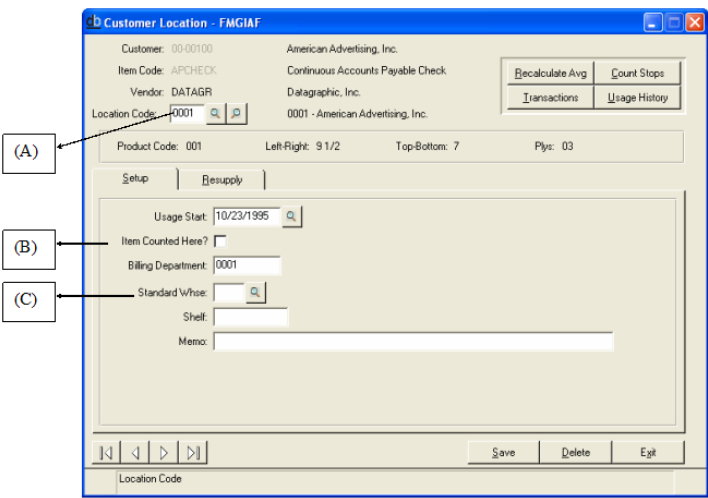
A. Location Code: Customer Ship-To Location
B. Item Counted Here: Normally targets a counted location (where physical stock audits trigger reorders), but issue-based locations (where inventory decreases automatically via distribution transactions) may also utilize the auto-replenishment program.
C. Standard Whse: Explicitly designates which primary warehouse automatic releases will pull from for this specific location pairing.

| Field Indicator | Parameter Name | Functional Rules & System Logic |
| D | Restock Method | Toggles between Fixed Quantity or Based upon Min/Max. |
| E | Interval Days | Required if choosing Fixed Quantity. Sets the forced cycle gap between orders. |
| F | Last Requisition Date | System-updated log showing the last auto-requisition event. Used to calculate Fixed Quantity intervals. |
| G | Minimum Restocking Point (Days) | Used for Min/Max. Minimum stock threshold calculated in days of supply based on average usage. |
| H | Usage Requisition Quantity | Used for Min/Max. The quantity that auto-requisitions will generate based on usage trends. |
| I | Minimum Stock Level (Units) | Used for Min/Max. A hard floor threshold calculated in eaches/units rather than days. |
| J | Auto Requisition Quantity | The exact order volume generated when a trigger point is hit (tracked in total eaches). |
| K | Average Usage | The rolling consumption calculation isolated to this specific ship-to location only. |
| L | Manual Re-supply Date | A manual date override to force a re-supply. Best Practice: Use this for new locations where historical usage trends have not yet been established. |
Running the Restocking Report & Generating Orders
Once your parameters are locked down, execute the replenishment engine to automatically insert the orders into your system queue.
Print Management ➔ Cycle Processing ➔ Restocking Report
Configure your operational prompt answers as follows:
- Print all replenishment items even if not needed?
-
Checked (Yes): Prints all items regardless of stock levels.
Unchecked (No): Filters the report to strictly display items that have dropped below their designated re-supply points.
-
- Estimate usage since last count?
- This runs an on-demand report without performing a formal physical count cycle. The system takes the last count quantity/date (or last shipped quantity/date for issue-based setups) and subtracts the Average Usage (K) to calculate live estimated balances. Highly recommended for issue-based locations.
- Print only warehouse on-hand for standard supply warehouse?
- Checked (Yes): Only reports against inventory physically available in your standard supply warehouse (useful if your distributorship maintains hidden or segregated virtual safety stock).
- Page break between customer locations?
- Checked (Yes): Guarantees that each unique customer shipping location generates its own separate report page.
- Update automatic requisitions?
- Checked (Yes): Dynamically generates open orders into DemandBridge using the system's automatic numbering feature. This action simultaneously writes an entry into the packing list printing queue. At the end of the report printing, the operator will be prompted to update them.
- Customer P/O or blank for automatic assign:
- Enter up to 10 characters to force a single, uniform PO number across the run (requires you to run the report separately per customer).
- Leave Blank to let the system auto-assign the PO number using standard system date logic:
[Year][Month][Day][3-Digit Sequence Number].
- Use warehouse with oldest lot for automatic requisitions?
- Select
Yto force the engine to respect the default ship-to default warehouse (C) for Customer Specific items only.
- Select
📝 Output Note: The system automatically divides the final output by Customer Specific Items and Stock Items (as designated in your Custom Item Master), printing them on separate sheets to streamline your warehouse fulfillment process.
Finalizing the Run
- Review your parameters and click Print Report.
- Click Yes.
- The requisitions will automatically commit to the database, and your packing lists will immediately drop into your standard warehouse print queue for shipping.