
DBC: Companies > Company Overview
The Company Overview page serves as the central configuration hub for a company. It allows administrators to manage the store's basic setup, communication settings, and view key company details all in one place. Changes made here affect the store's availability and how automated emails are handled.
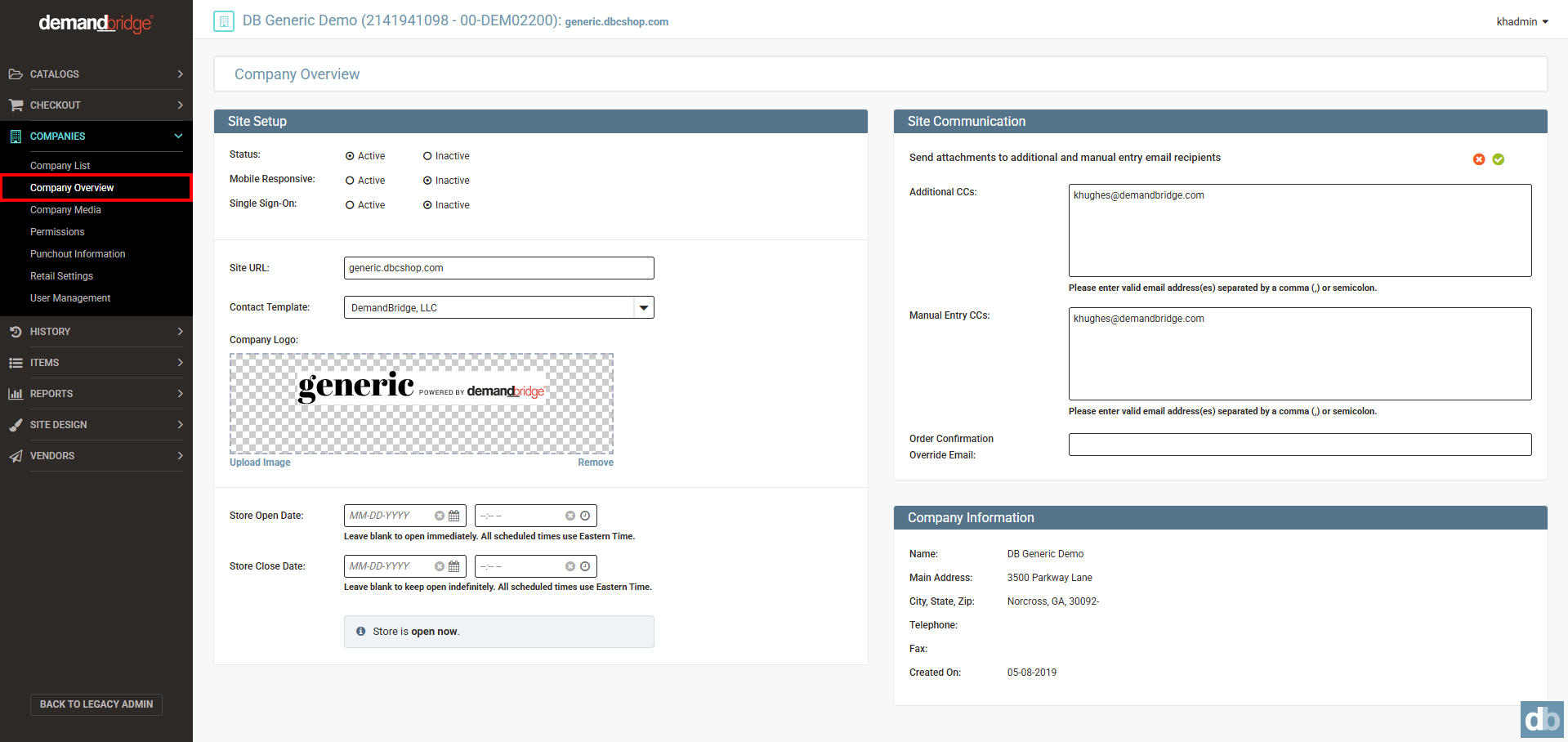
Site Setup
The Site Setup section controls the core operational settings for the store.
- Status – Determines whether the store is active or inactive. When set to Inactive, the sign-in button will be disabled, preventing customers from logging in or placing orders. However, if the site URL is still accessible, users will still be able to reach the storefront page itself — they simply won't be able to sign in.
- Mobile Responsive – Controls whether the storefront displays in a mobile-optimized layout on phones and tablets. Note that enabling this feature requires additional setup — please contact DB Support before setting this to Active.
- Single Sign-On (SSO) – Toggles SSO authentication for the store. When Active, users can log in using their organization's SSO credentials instead of a separate store login. Note that enabling this feature requires additional setup — please contact DB Support before setting this to Active.
- Site URL – The unique web address where the storefront is hosted and accessible to customers. This should follow the format
company_name.domain.com, wherecompany_nameis your customer's identifier anddomain_nameis the domain for which you have obtained your certificate. - Contact Template – A dropdown to assign a contact/email template to the store. If no template is needed, it can be left as "-No Template-." (Not valid for the Responsive Interface)
- Company Logo – Displays the current logo shown on the storefront. Administrators can upload a new image or remove the existing one using the provided links.
-
Store Open Date / Store Close Date – Defines the scheduled window during which the store is open and accepting orders. Both fields accept a date and time (Eastern Time). Leaving the open date blank opens the store immediately; leaving the close date blank keeps it open indefinitely. A status banner at the bottom of the section confirms the store's current open/closed state and the next scheduled change. For a preview of the end user experience Click Here - Store Information Messaging.
NOTE: In a traditional storefront, users will still see the modal upon login. However, if you log in as an Admin user, you will have an additional option — "Preview Store As Admin" — which allows admins to bypass the modal and navigate the site freely.
In a retail storefront where the store is closed, an Admin user can impersonate themselves to access the "Preview Store As Admin" option, bypassing the modal and allowing them to work within the site.
| Configuration | Result |
|---|---|
| Open date set, close date blank | Store opens on the specified date and stays open indefinitely |
| Open date blank, close date set | Store is considered open immediately; closes on the specified date |
| Both dates set | Store opens and closes automatically on the configured dates |
Site Communication
The Site Communication section controls how order-related emails are routed and who receives copies of them.
- Send attachments to additional and manual entry email recipients – A toggle that controls whether email attachments (such as order confirmations) are included when emails are sent to the CC recipients listed below.
- Additional CCs – A free-text field for entering extra email addresses that should automatically receive copies of store emails. Multiple addresses can be entered, separated by a comma or semicolon.
- Manual Entry CCs – Similar to Additional CCs, this field is intended for manually specified recipients who should be copied on relevant store communications. Multiple addresses can be entered, separated by a comma or semicolon.
- Order Confirmation Override Email – Allows an administrator to specify an alternate email address that will receive order confirmation emails instead of the default recipient.
Company Information
The Company Information section is a read-only reference panel, pulling data from the backoffice, displaying the key details associated with the company account.
- Name – The company name tied to this account.
- Main Address – The primary street address of the company.
- City, State, Zip – The company's city, state, and ZIP code.
- Telephone / Fax – Contact phone and fax numbers on file for the company.
- Created On – The date the company account was originally created in the system.
Frequently Asked Questions
- Status: What does "Inactive" status mean for customers who already have the store URL? Users will still be able to reach the storefront page, but won't be able to sign in or place orders.
- Site URL: Can I change the Site URL after the store is already live? Yes, just make sure you send notification to your end users and/or work with DB Support to put a redirect in place.
- Store Open/Close Date: What happens if I don't set an open date? The store is treated as open immediately. Only the close date will be enforced.
- Store Open/Close Date: What happens if I don't set a close date? The store will open on the configured open date and remain open indefinitely.
- Store Open/Close Date: Can I reset a date after setting it? Yes. Use the × button next to either date field to clear it individually.
- Store Open/Close Date: How do admins access the store when it's in a "closed" or "opening soon" state? Admin bypass access is available. Contact your platform administrator for details on how to access the site while the store is in a pre-open or closed state.
- Store Open/Close Date: Will the countdown banner show if the store has no close date? No. The banner only appears when a close date is configured and that date is 3 days or fewer away.
- Store Open/Close Date: What timezone do the Store Open/Close Dates use? Eastern Time.
- Additional CCs or Manual Entry CCs: Is there a limit to how many email addresses can be added to Additional CCs or Manual Entry CCs? No, there is not limit, just be sure to a enter valid email address(es) separated by a comma (,) or semicolon.