
EQD: Emailing
This guide provides the steps for sending PO's, Invoices, releases and other documents from the EQD software.
Note: If your email has not been set up in EQD that will need to be done first.
Click here to view EQD email setup instructions
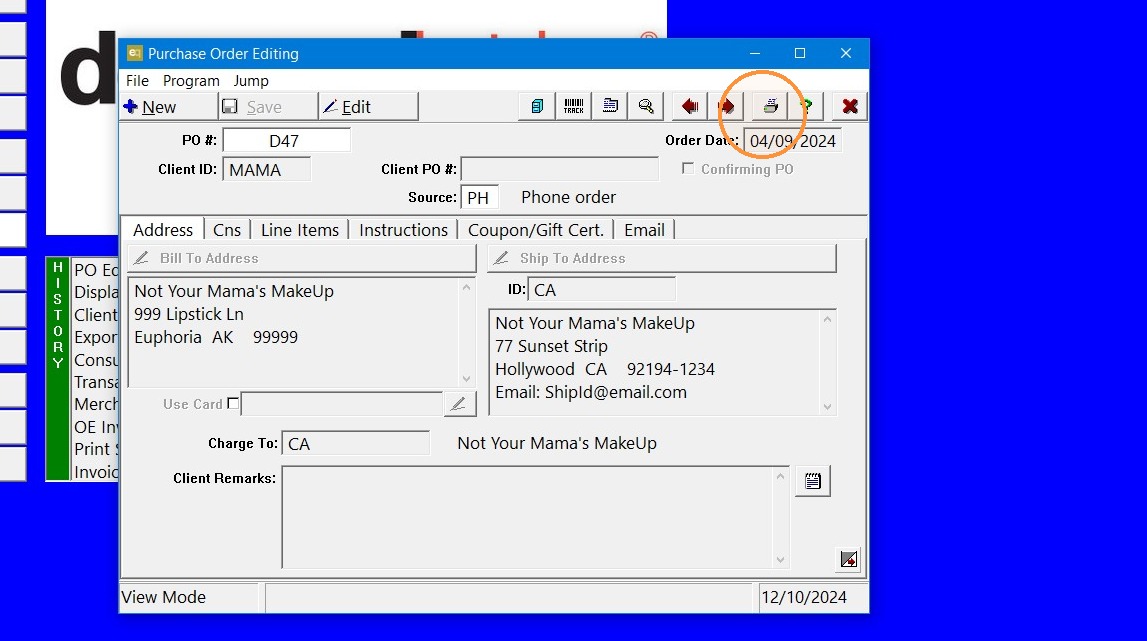
1. To email from EQD, click the printer icon in the top right corner.
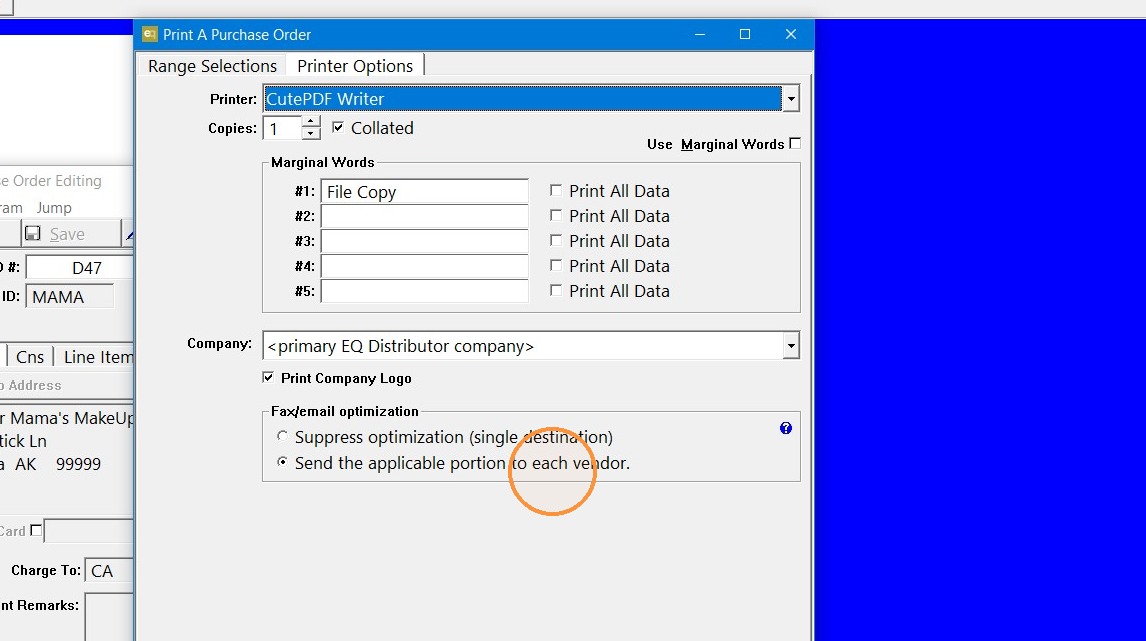
2. You can review the "printer options" tab> Fax/Email optimization.
- "Suppress optimization (single destination)" will email all items to a single email address of your choosing.
- "Send the applicable portion to each vendor" will send only what is needed for each vendor.
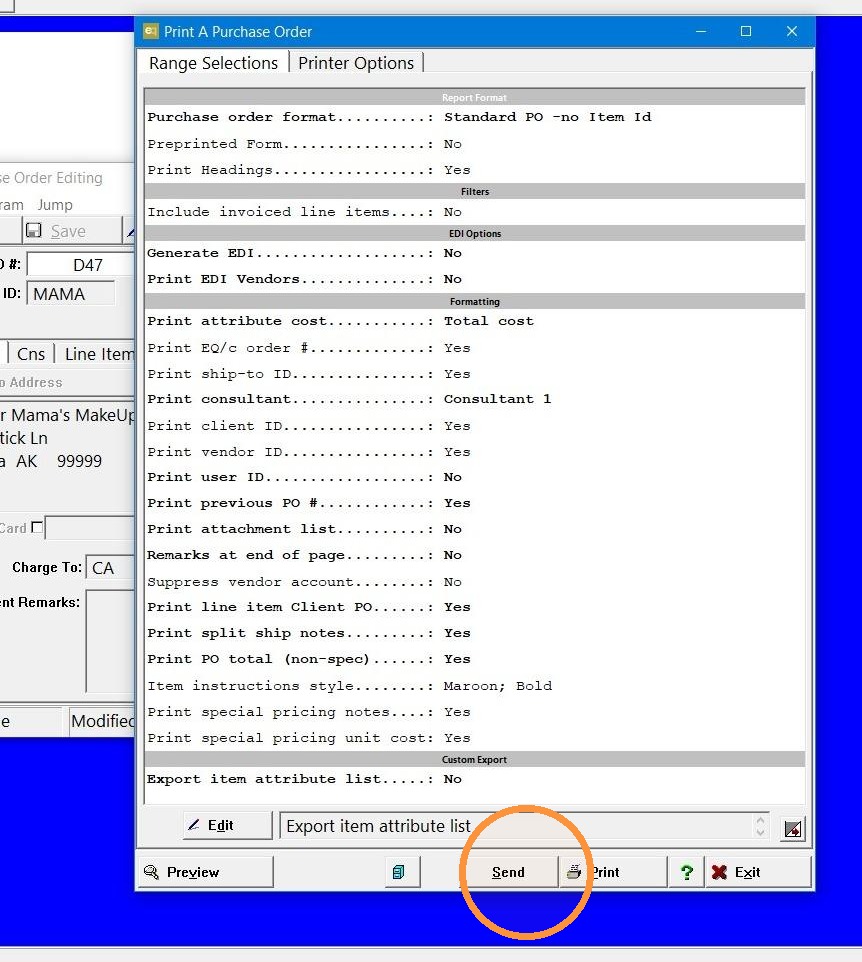
3. When you are ready click "Send".
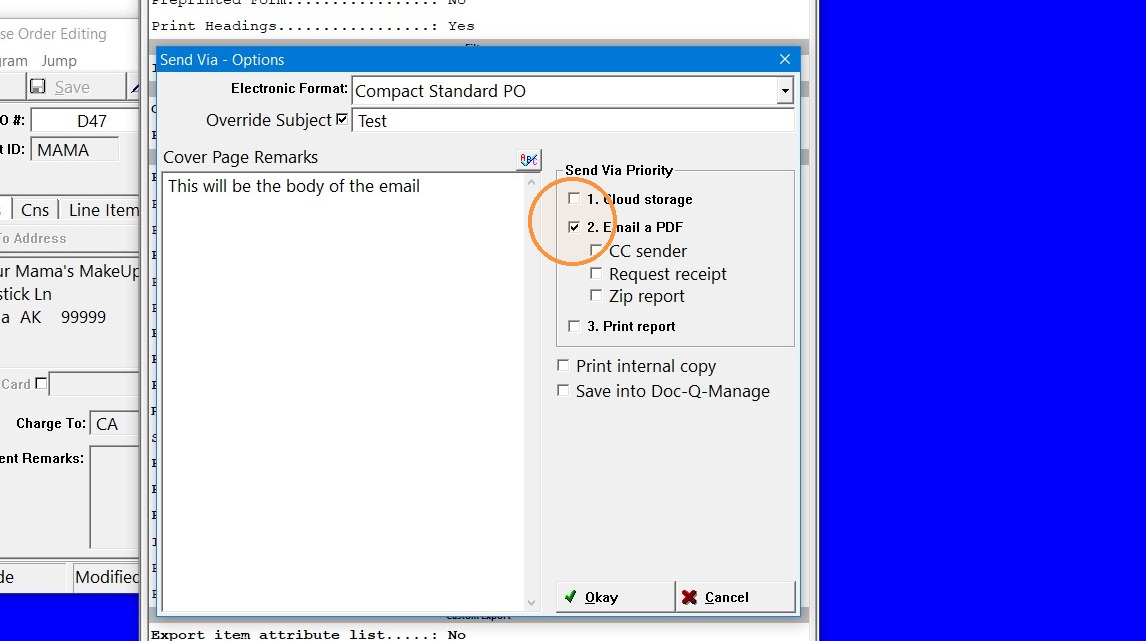
4. The "Cover page remarks will be the body of the email. Make sure to click the "Email a PDF" box. When you are ready to send click "Okay".
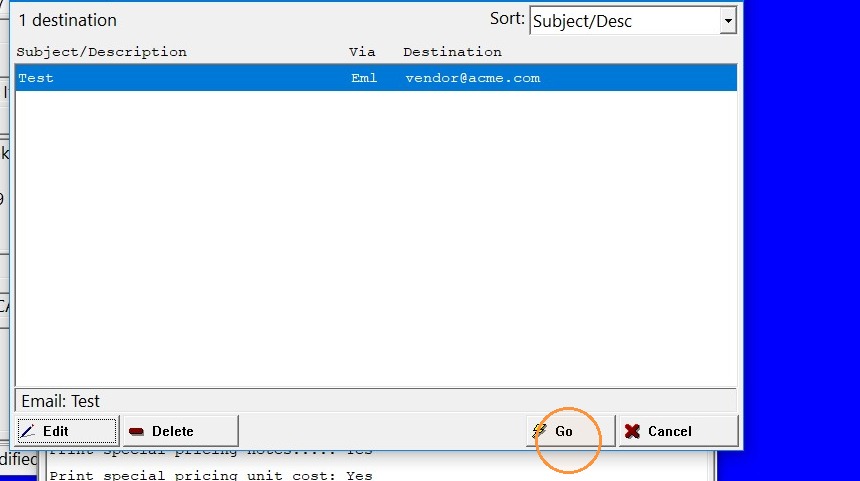
5. The email address that is in the contact information of the vendor or client (depending on what is being sent) will be auto populated. If you want to change it you can click "edit". When you are ready click "Go".
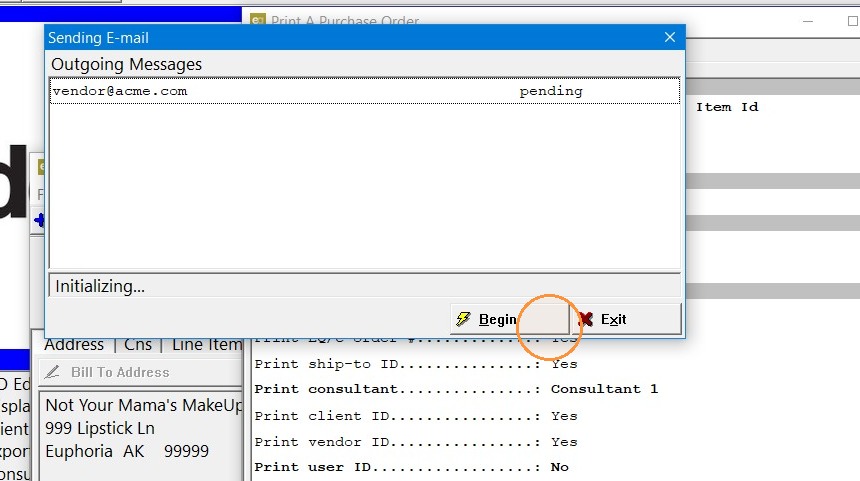
6. Click "Begin" or wait for the count down then it will send.
Tip: If you have further questions contact DemandBridge support .