
EQD: Email Setup
This guide provides a step-by-step process for setting up and sending emails through the EQD software.
Note: If your EQD is not hosted by DemandBridge, also known as an "On Premise" installation you do need to have the Black Ice PDF drive installed in order for the email function to work.
Click here to view the Black Ice install instructions
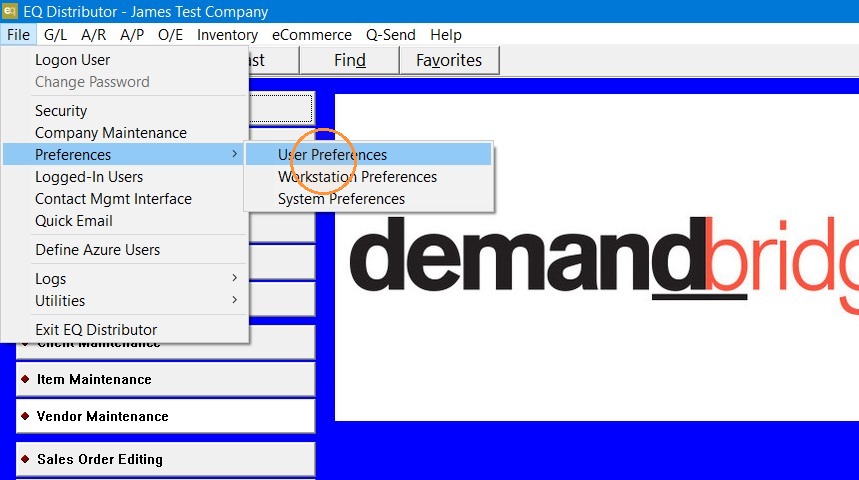
1. Go to file> Preferences> User Preferences> email (tab)
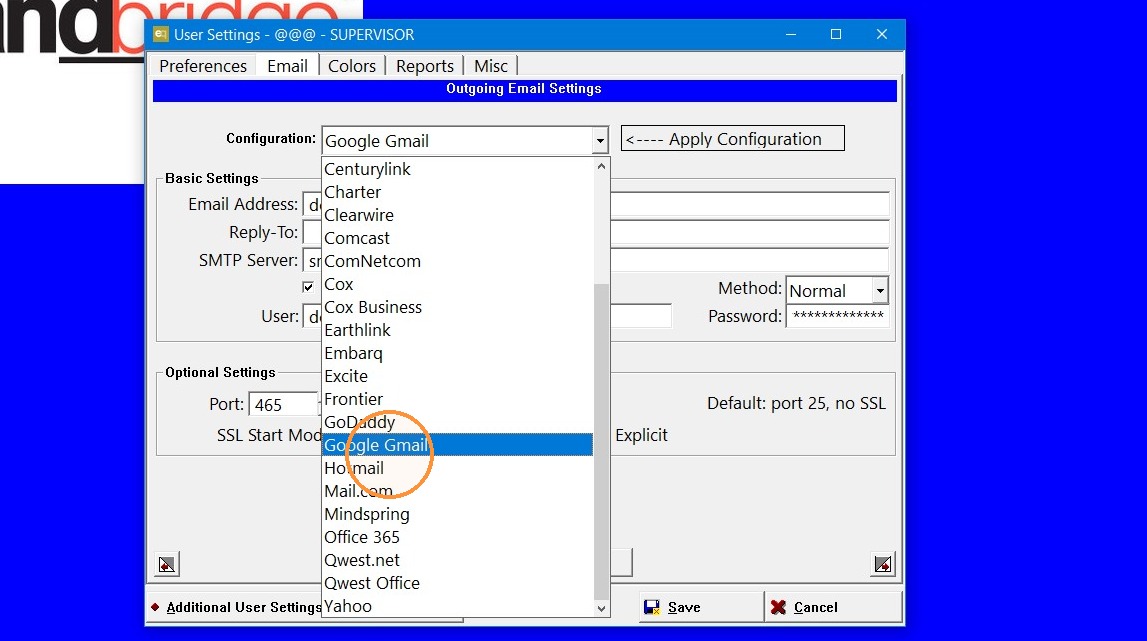
2. Drop down the "Configuration" field and find the configuration for the email service you use (like Office 365 or Gmail) Or if you have the smtp server info use the "Custom Email Settings"
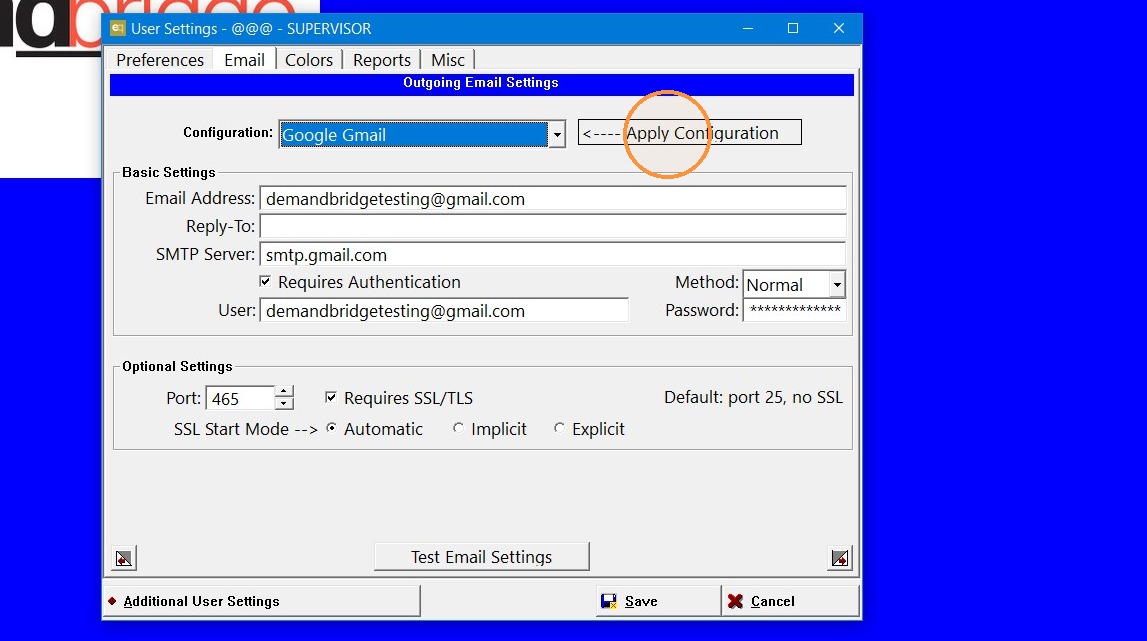
3. Click "Apply Configuration"
4. Fill out the
- Email address
- Reply-To (only if it is different from the main email address. If it is the same leave this blank).
- User (also the email address).
- Password
- Note: if your email account is set up using 2 factor authentication you will need to create an app password and use that here. If you are unsure how to do that consult with your I.T. or email provider.
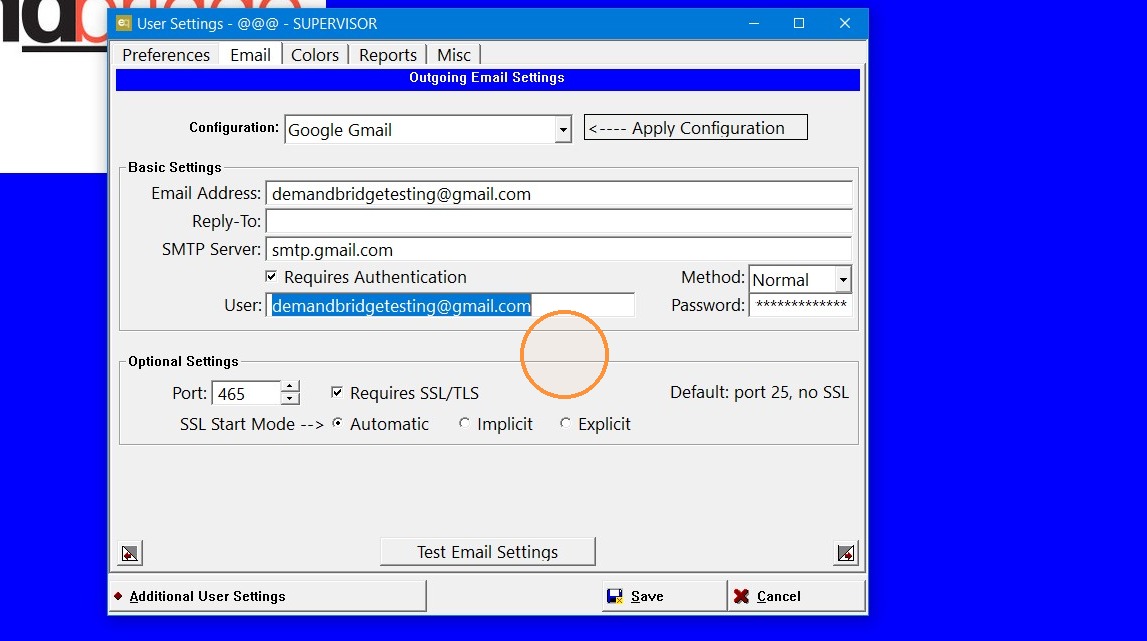
5. Once all necessary fields are filled out click "Test Email Settings".
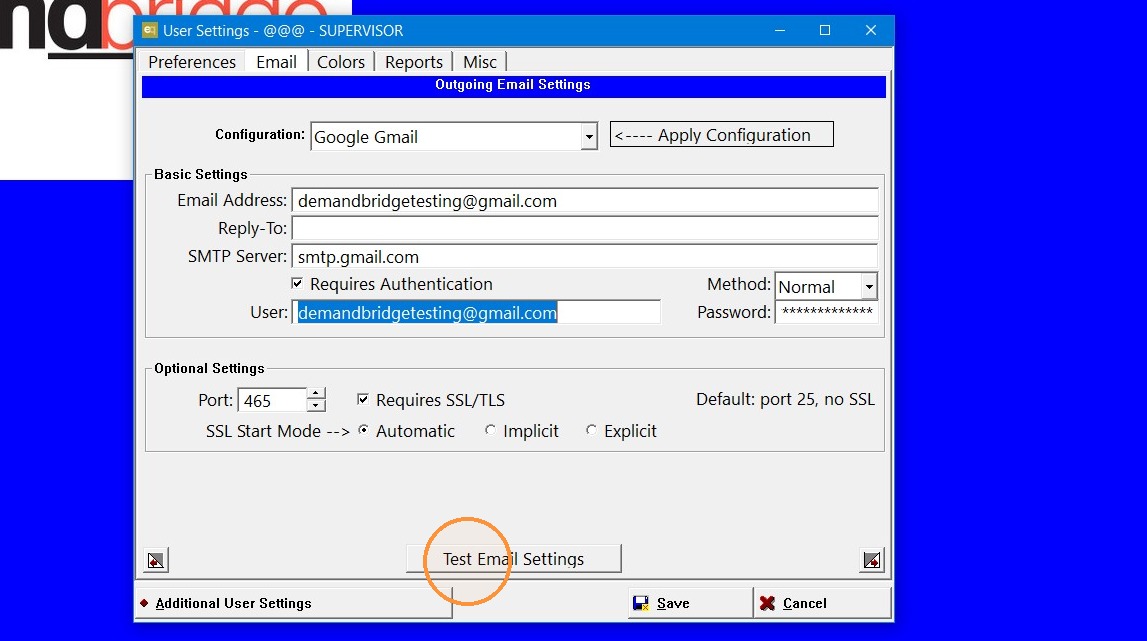
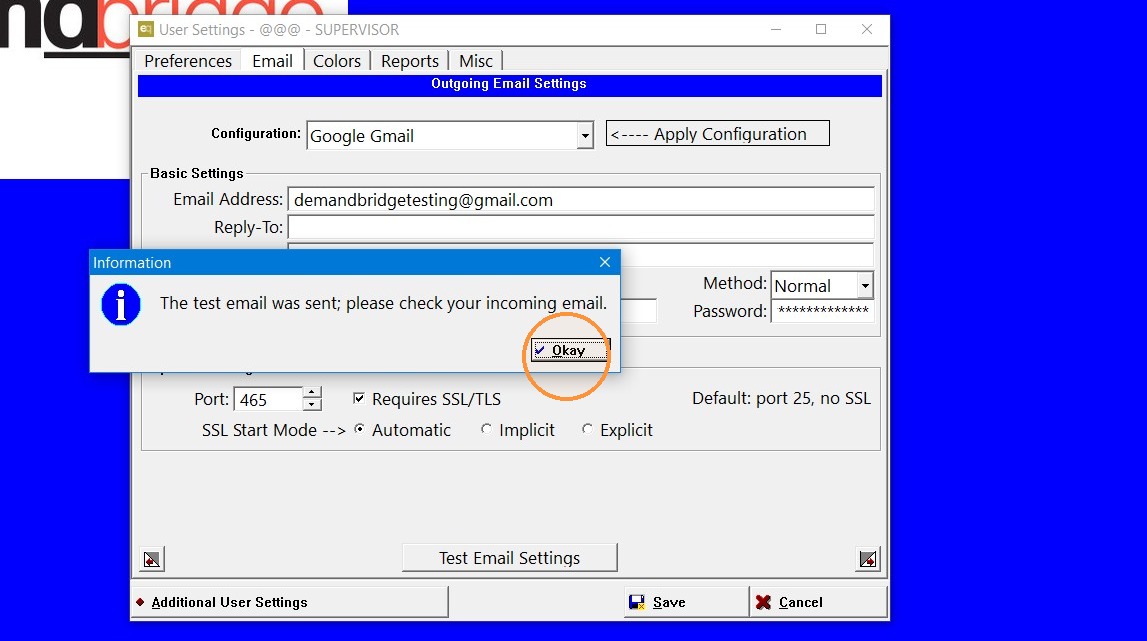
6. If a test email is sent the setup was a success. Click "Okay".
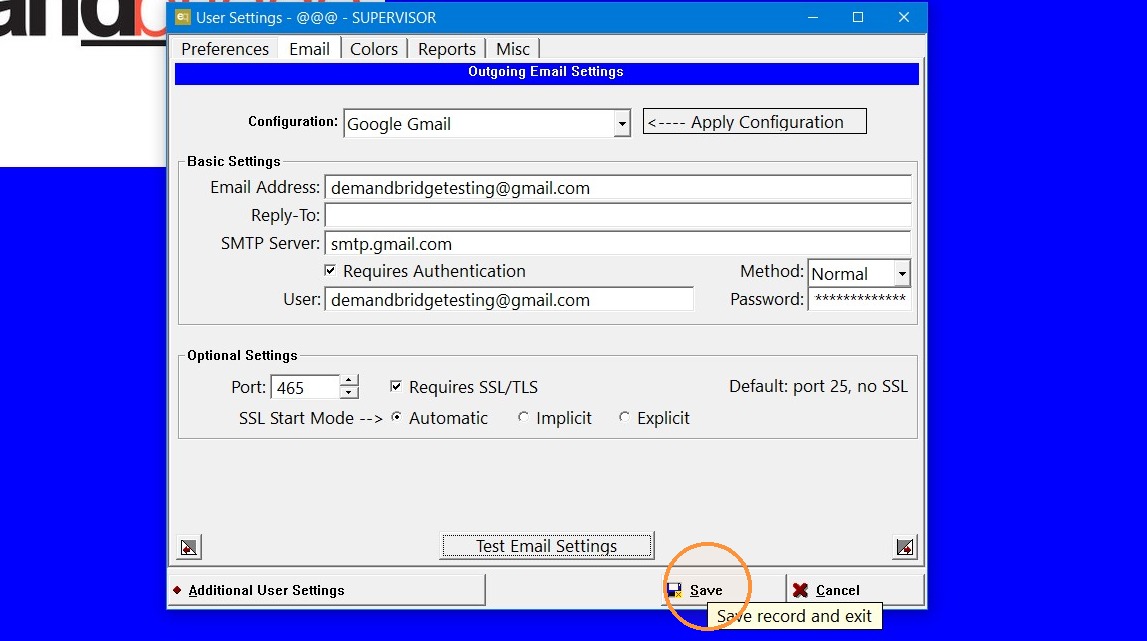
7. Click "Save"
Tip: If you want to learn how to send emails from EQD Click here to see the steps.
Tip: If you have further questions contact DemandBridge support.