
DBD: Cash Receipts Advanced - Prepayments & Open Invoice Placeholders
There are times when a customer pays an old invoice in error after a month-end close has already occurred. Because that invoice has been finalized and swept into your data archives (History), it no longer exists in your active Open Invoice file (AR6 ).
This troubleshooting guide covers Advanced Prepayment Entries, walking you through how to utilize a specialized character prefix to establish an open database placeholder and safely log cash against historical records.
Prepayment Entry
The system provides a built-in Prepayment feature to handle unapplied funds or customer deposits. However, when using this feature to account for an item that lives in History, you must understand a core system date rule:
⚠️ The Generation Date Rule: When a prepayment record is initialized, the system will always apply today's current calendar date as the underlying Invoice Date. The system will not allow you to backdate a prepayment to match the original, historical creation date generated by a past Sales Journal run.
Despite this date variation, the customer's active open balance will reflect the transaction accurately, providing a clean place to anchor the cash until a final match is resolved.
Forcing an Invoice Placeholder
1. Identify the Field Discrepancy
When you select the standard prepayment utility inside the system, the data entry fields utilize two different character boundaries:
- A standard system Order Number is an 8-character field.
- A standard system Accounts Receivable Invoice Number is a 7-character field.
Because the prepayment screen expects an order identifier rather than a historical invoice string, trying to input a raw 7-digit invoice number directly will cause an error or break your reporting trails.
2. Apply the "9-Digit" Entry Shortcut
To bypass this field mismatch and force the database to map your placeholder directly to the desired invoice string, apply this data structure workaround:
-
Navigate to your active Level 3 allocation screen.
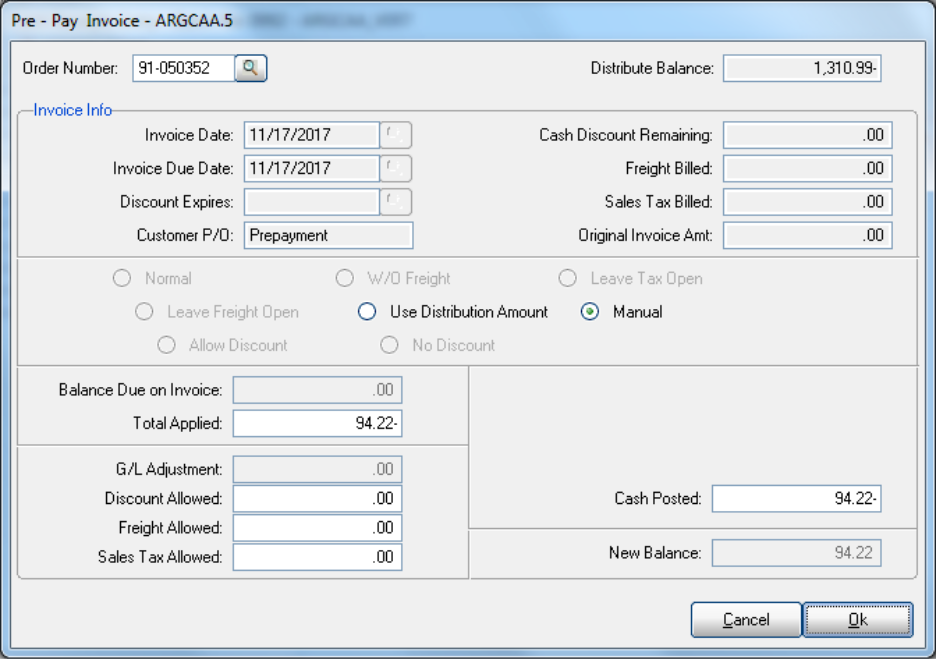
Click the Pre-Pay button.
When prompted for the order tracking reference, enter a
9in the first position, followed immediately by the 7-digit historical invoice number.- Example: If the historical invoice number is
1234567, you will key in91234567into the field box.
- Example: If the historical invoice number is
3. Complete the Action Map
Once your 8-character string is keyed, select your distribution method:
- Use Distribution Amount: Select this radial button if you want the entire unapplied check balance to be absorbed by this single historical placeholder.
- Manual: Select this radial button if you are logging a complex multi-check split and need to hand-key a specific Total Applied and Cash Posted value to this line item.
4. Database Output Execution
Click OK to commit the line. Behind the scenes, the system accepts the 8-character string to pass validation checks. However, the moment the permanent database record is written, the system automatically drops that leading "9" prefix.
Your user team is left with a clean, perfectly mapped, positive open credit invoice record inside the client's active accounts receivable dashboard that mirrors the exact historical invoice number you intended to reference.
Summary of Processing Outcomes
Depending on the mathematical value you pass to this prepayment tool, you can drive two distinct accounting outcomes:
- Entering a Positive Value: Regularly entering a positive check value under this framework creates a negative unapplied balance (a clean, standard credit placeholder).
- Entering a Negative Value: Inputting a negative dollar value during this step creates a positive invoice balance record on the ledger. This specific route is utilized as an advanced workaround when an operator needs to manually back out a past cash receipt that was entered in error.
Next Steps in the Troubleshooting Series
With your prepayment placeholder safely staged in the active batch workspace, you can print your verification journal to confirm the layout before running your daily update. For other advanced data corrections, jump to our adjacent guides:
- Main Hub Overview: DBD: Cash Receipts Overview & High-Level Architecture
- Advanced Overrides & Corrections
- DBD: Cash Receipts - Advanced - Ledger Corrections & Reversing Misapplied Cash Entries required to back out a misapplied payment and open up an invoice balance safely.
- DBD: Cash Receipts - Advanced - Writing Off Balances & Non-A/R General Ledger Deposits Clearing residual penny balances using the GL Adjustment tool, clearing On-Account items, and using the spacebar shortcut for direct GL tracking.