
DBD: Cash Receipts Advanced - Writing Off Balances & Non-A/R General Ledger Deposits
According to generally accepted accounting principles (GAAP), all physical or electronic incoming cash must be logged within your cash receipts journal, regardless of its original source.
This advanced guide details how to handle non-A/R miscellaneous deposits (such as corporate tax refunds, vendor rebates, or asset sales) using system bypass shortcuts, as well as how to permanently write off residual customer balances and On-Account items using the GL Adjustment utility.
Processing Non-A/R General Ledger Deposits
When a check arrives that is completely unrelated to customer accounts receivable billing, you must bypass the standard Customer Master file verification and route the cash directly to a specific General Ledger chart of accounts string.
Initialize the Non-A/R Workspace
- Open a new Cash Receipts Entry batch workspace.
- Establish your active period boundaries, assign your tracking Deposit Number, and input the literal cash total into the Deposit Amount field.
- Click Next to open Level 2.
Execute the Spacebar Bypass Shortcut
- When the panel initializes, position your blinking cursor directly inside the empty Customer field box.
Press your Spacebar ONCE, then press your Enter key.
- This specific keystroke sequence signals the program to completely bypass the core Customer file lookup rules. The screen will dynamically adapt, shifting its tracking fields to accept direct general ledger configuration metrics.

Log the Source and Map the G/L String
- Enter your standard tracking metadata in the Check Reference, Check Date, and Check Amount fields just as you would for any typical deposit.
- Locate the open description text field and type in the literal source of the remittance.
- Click the Show G/L button to slide open your account chart matrix.
-
Input the exact corporate General Ledger string designated to absorb the cash receipt.
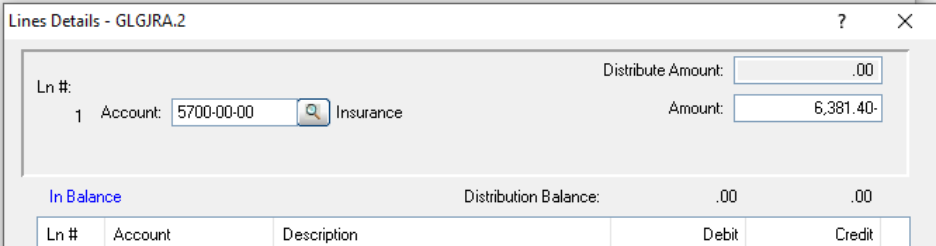
- Verify your active batch figures balance to zero, exit the workspace, and run your pre-validation Cash Receipts Journal to confirm the tracking before updating.
Clearing Small Variances & Residual Bad Debt
Use this procedure when a customer invoice carries a tiny penny shortfall or an old uncollectible balance, and you need to clear the active asset out of your open tables (AR6 ) and absorb the loss.
- Navigate into your Level 3 single-invoice allocation panel via Invoice Entry.
- Select the target invoice and toggle the action to Manual.
- Key the entire invoice amount into the Total Applied field box.
- Key a 0.00 directly into the Cash Posted field box.
- Click OK. The system will detect the structural mismatch and trigger an alert:
Total Applied is out of Balance. - Click OK on the alert to unlock your processing utility buttons.
- Click the GL Adj button. An adjustment sub-panel will open on your layout.
- Key in your company’s designated bad-debt account string, allowance account, or specific revenue adjustment code. Click OK to permanently clear the row.
Writing Off an On-Account Credit Balance
Use this procedure if a customer has historically overpaid an item, leaving an active credit balance sitting On-Account (ONACCNT ), and your management team has decided to formally write off or absorb that balance down to zero.
1. Establish a Zero-Dollar Staging Batch
- Open a new Cash Receipts Entry workspace.
- Define your active accounting period.
- Set your overall Deposit Amount to exactly 0.00.
- In the Level 2 screen, input the specific Customer Code.
- Enter a clear tracking string into the Check Reference field box (e.g.,
W/OFF) and accept the confirmation prompt to add the line. - Set the Check Amount to exactly 0.00.
-
Click Use On Account.
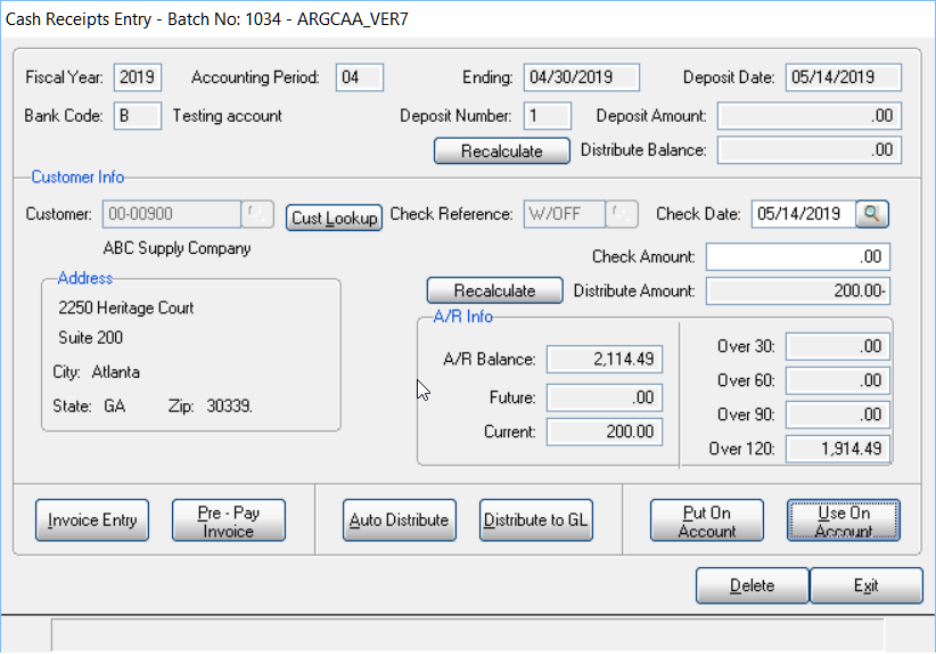
Pull the Credit into the Active Distribution Pool
- The system will read the customer's master records and throw a validation prompt displaying the total credit balance currently resting on the account.
- Click OK to clear the prompt.
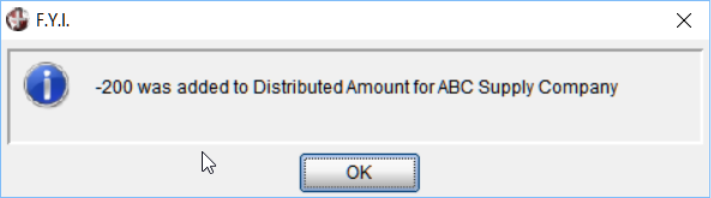
- The program will automatically draw that credit value forward and populate it inside the active Distribute Amount tracking grid field.
Route the Balance to your Write-Off Account
- With the credit funds floating actively in your workspace pool, click the Distribute to GL button.
- The program will prompt you for an accounting code destination. Key in the appropriate corporate General Ledger revenue, write-off, or sales returns and allowances account string used by your finance department.
- Once the active workspace balance reads exactly
0.00, click END. - You will be returned cleanly to the primary Customer Information layout. Exit the entry panel, print your verification journal to double-check the accounting lines, and execute your final system update.
End of the Cash Receipts Documentation Series
You have successfully completed the advanced configuration and troubleshooting modules for DB Distributor's cash receipts engine.
- Return to Main Overview Hub: DBD: Cash Receipts Overview & High-Level Architecture
- Advanced Overrides & Corrections
- DBD: Cash Receipts - Advanced - Writing Off Balances & Non-A/R General Ledger Deposits Prepayments, Open Invoice placeholders, Non-A/R General Ledger postings
- DBD: Cash Receipts - Advanced - Ledger Corrections & Reversing Misapplied Cash Entries required to back out a misapplied payment and open up an invoice balance safely.