
DBD: Cash Receipts Advanced - Ledger Corrections & Reversing Misapplied Cash
There are times when a cash receipt is accidentally posted to the wrong invoice or an On-Account credit is misapplied. If the month-end close hasn't run yet, meaning both invoices are still sitting inside your active Accounts Receivable open file (AR6 ), you can execute a precise reversal within the system to fix the error.
This troubleshooting guide walks you through the step-by-step negative entry workflows required to cleanly restore invoice balances and undo misapplied cash applications.
Restoring an Invoice to "Not Paid" Status
Use this procedure if a clerk accidentally applied a payment to the wrong active invoice, and you need to reset that specific invoice's outstanding balance back to its original open state.
1. Initialize a Correction Workspace
- Navigate to: DB Distributor → Accounts Receivable → Cash Receipts → Entry
- Enter your current active Fiscal Year and Accounting Period.
- Establish a dedicated Deposit Number for this fix sequence.
- ⚠️ The Balanced Deposit Rule: Enter 0.00 as your overall Deposit Amount. (Even though you are moving money, the net physical effect on your bank deposit total is zero).
- Click Next.
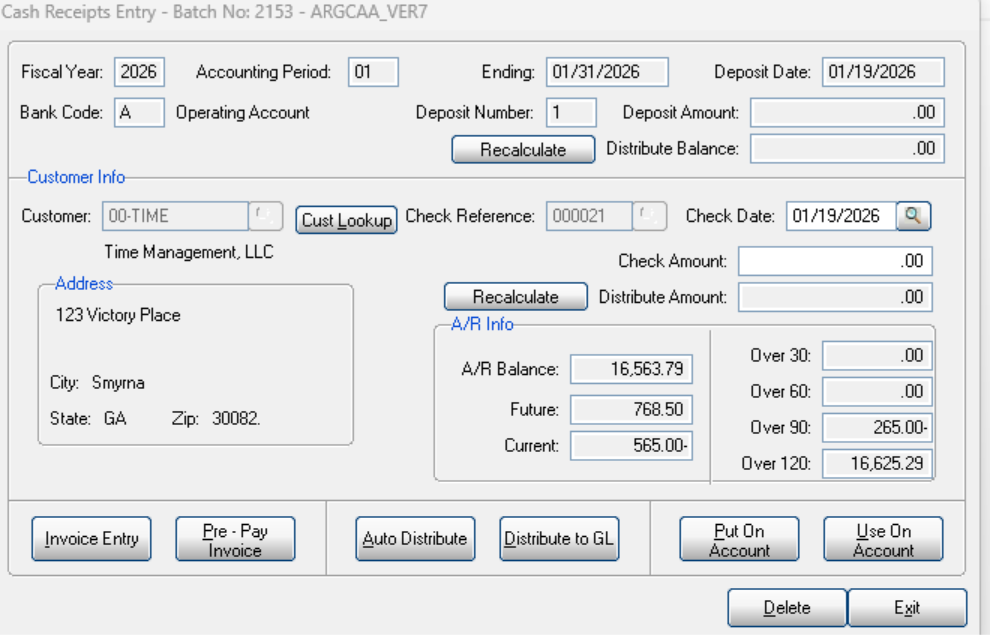
2. Isolate the Customer Check Layer
- In the Level 2 screen, enter the target customer's account code.
- Enter a tracking code into the Check Reference field (e.g., append
REVor a standard correction string to the original check number) and confirm the prompt to add the record. - Enter 0.00 in the Check Amount field.
-
Click the Invoice Entry button to drill down to Level 3.
3. Apply the Negative Reversal Values
- Key in the specific invoice number that was incorrectly marked as paid.
-
Click the Manual radial action button.
The system will detect the paid status and trigger a validation message:
Invoice Balance is Less than or Equal to Zero. Click OK to clear the prompt.Move your cursor to the Total Applied and Cash Posted fields.
Key in the full invoice total as a negative number in BOTH fields.
- Example: If the original invoice value was
$265.00, enter-265.00in Total Applied and-265.00in Cash Posted. - Note: If the system alerts you that the action "requires too much money," verify that you have typed the negative sign properly or backspace completely in the field grid before re-keying.
- Example: If the original invoice value was
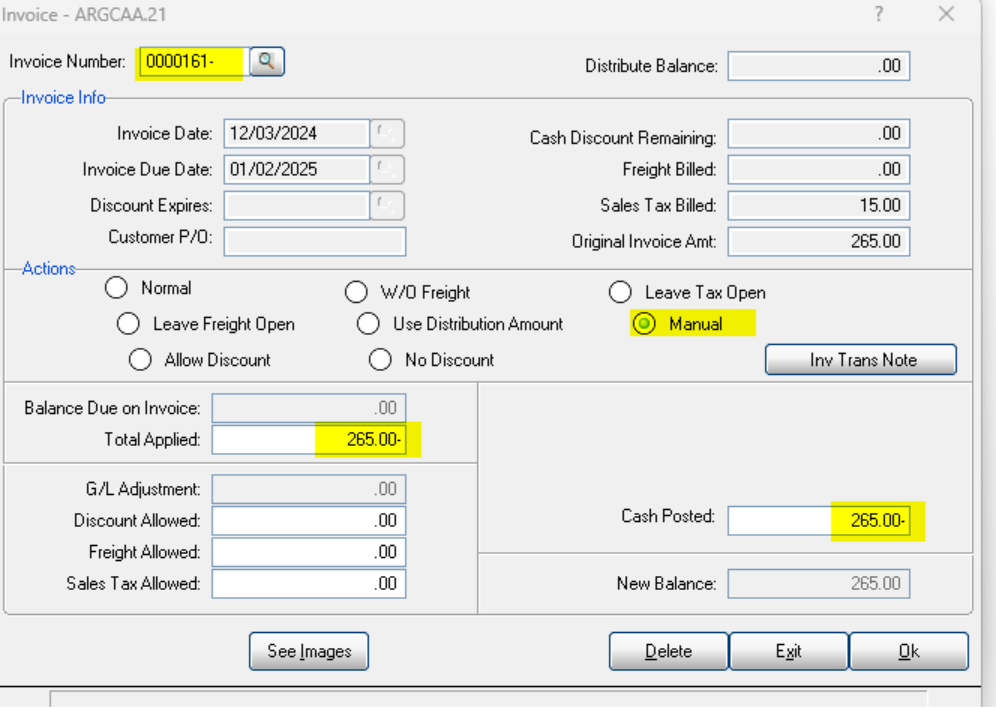
- Look at the New Balance display field on screen. It will dynamically refresh to show the full invoice balance restored as a positive open liability. Click OK.
- If you have multiple invoices to restore, repeat this step for each one.
4. Re-Apply the Payment Correctly
Once all incorrect lines have been safely reversed, you can immediately re-route the funds within the same active batch:
- Select the correct invoice number that should have received the payment.
- Click the Normal radial action button to settle it.
- Click OK, then click Exit to leave the distribution panel.
- Print your Cash Receipts Journal to audit the offsetting entries, verify that everything balances to zero, and run your final update.
Reversing an On-Account Error
Use this procedure if a cash receipt was mistakenly placed directly On-Account (ONACCNT ) for a customer, and you need to undo that transaction and pull the funds back into their active invoice distribution pool.
1. Establish the Zero-Dollar Boundary
- Open a new Cash Receipts Entry batch workspace.
- Select your active period, enter your tracking Deposit Number, and set the Deposit Amount to 0.00.
- Enter the Customer Code at Level 2, input your Check Reference string, and set the Check Amount to 0.00.
- Click Invoice Entry to open Level 3.
2. Extract Funds from the Invoice
- Select the invoice number that was mistakenly skipped during the original run.
- Toggle the action to Manual.
- Key in the invoice amount as a negative value in both the Total Applied and Cash Posted grids. 4. Verify that the New Balance field displays the item as restored and open, then click OK and hit Exit.
3. Route the Value Back to On-Account Staging
- You will be returned automatically to the primary Customer Information layout.
- Notice that because of your negative application, the system's Distribute Amount field now displays the full face value of the invoice as an unapplied positive balance.
-
Click the Put On Account button.
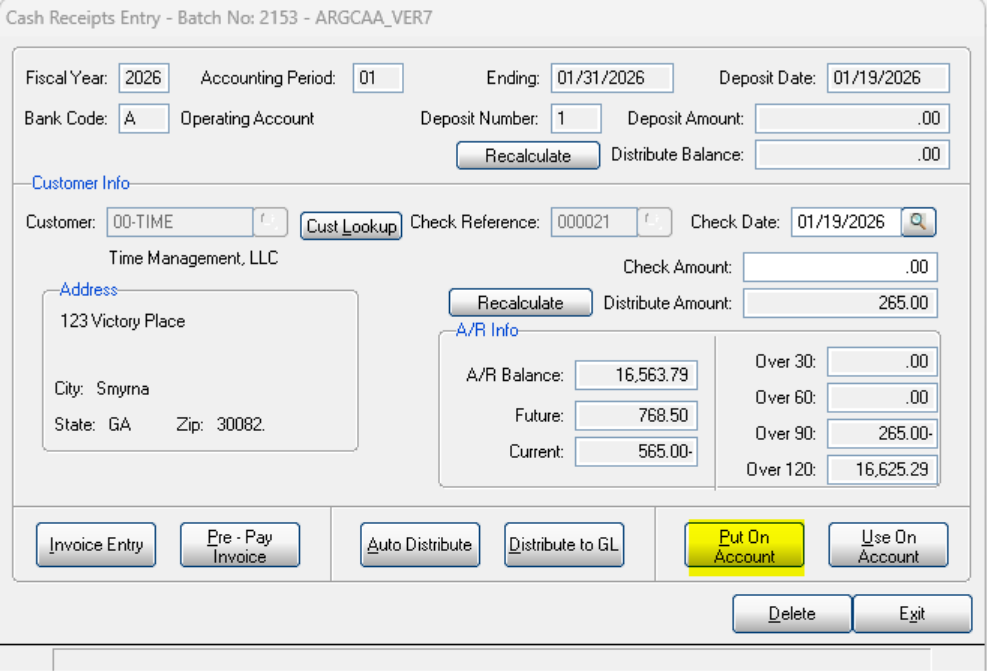
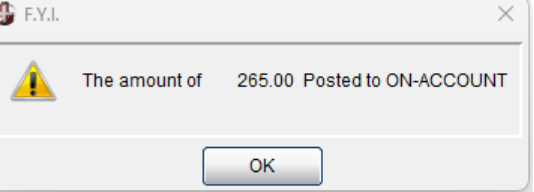
- A confirmation prompt will appear on your screen. Click OK to validate the placement.
4. Audit the Output Ledger
Exit the entry screen and generate your Cash Receipts Journal. Verify that the report displays two clean, offsetting line items:
- The target invoice balance will appear as a positive open liability.
- The On-Account balance will appear as an equal and opposite credit balance.
If the journal data matches your expectations, execute your final system update to commit the fix.
Next Steps in the Troubleshooting Series
With your ledger corrections safely mapped, you can explore our final specialized tracking guide to manage direct ledger cash and residual adjustments:
- Main Hub Overview: DBD: Cash Receipts Overview & High-Level Architecture
- Advanced Overrides & Corrections
- DBD: Cash Receipts - Advanced - Writing Off Balances & Non-A/R General Ledger Deposits Prepayments, Open Invoice placeholders, Non-A/R General Ledger postings
- DBD: Cash Receipts - Advanced - Writing Off Balances & Non-A/R General Ledger Deposits Clearing residual penny balances using the GL Adjustment tool, clearing On-Account items, and using the spacebar shortcut for direct GL tracking.